
What you will get
The reason that one particular student cannot sign, found in a few minutes. The five checks run from the most common cause to the rarest — follow them in order and you will settle most cases on the first or second step.
1. Do they have portal access?
By far the most common cause. With no account there is no signing: the contract lives inside the portal.
Open the student's record and look at portal access. If it says they have none, the student will never see the contract — and the portal screen has no way to tell them so, because they never get in.
A student with no email address on their record never receives access. That is the silent origin of this case.
2. Are they looking at the right enrolment?
A student with two enrolments has two contracts, one for each. It is common for them to open the one they already signed and report that "nothing shows up to sign".
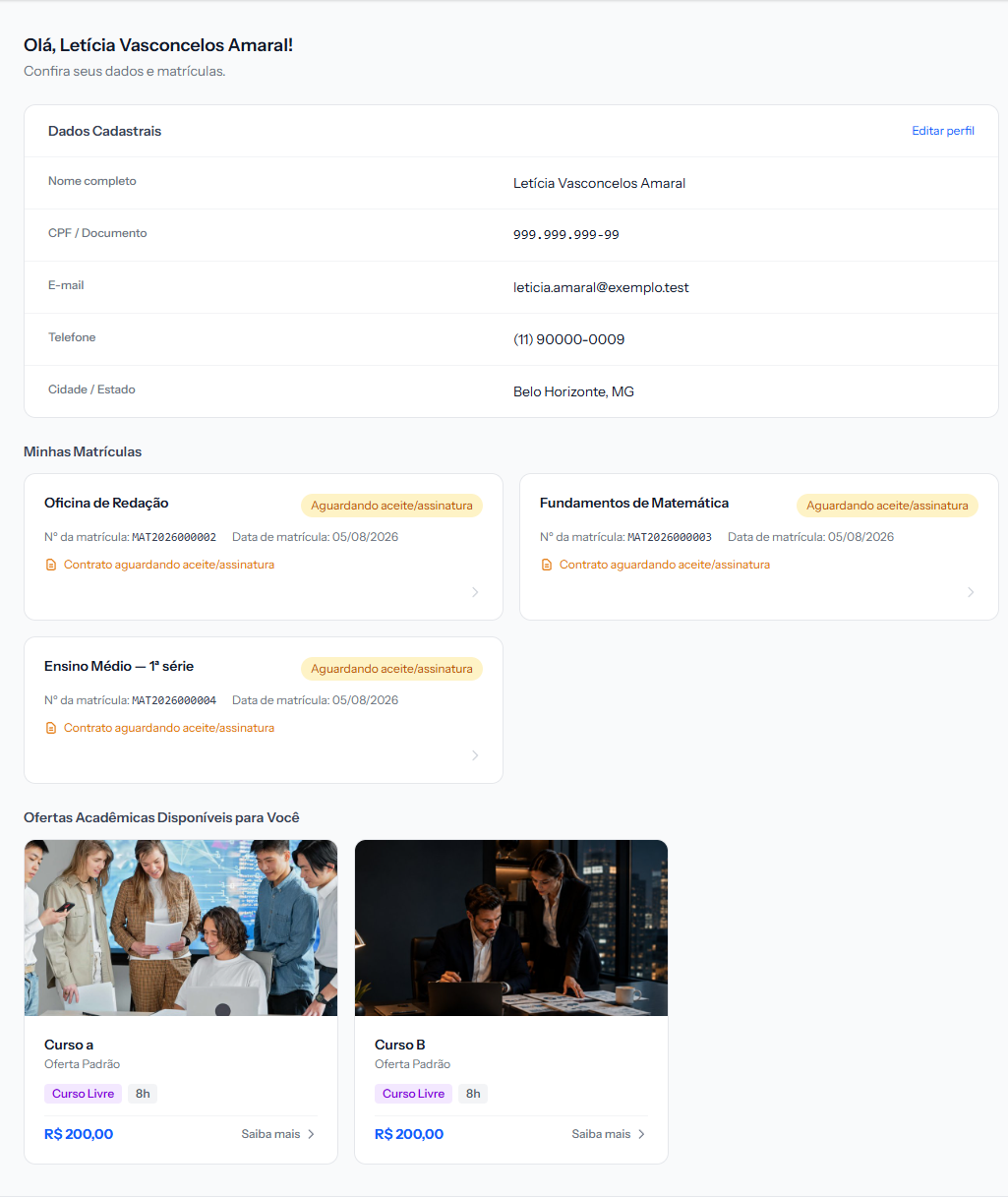 Each card is one enrolment, with its number and status. The screenshot is from the Portuguese portal; the layout is the same in English.
Ask for the enrolment number. It is on the card.
3. Is there a contract on that enrolment?
Not every enrolment has one: if it was created without a contract template, there is nothing to sign — and that is correct behaviour.
Open the enrolment in the panel. If the contract panel says No contract linked., the student is right: there is nothing for them to do.
4. Is the button dim?
Each method has its own condition, and all of them show on the screen itself:
| Method | Why the button will not light up |
|---|---|
| Electronic acceptance | The I have read, understood… box is not ticked |
| Digital signature | The box is empty, or the typed name is shorter than three characters |
| Physical signature | No file chosen, or more than six |
In all three the button comes back the moment the condition is met — nothing needs reloading.
5. Has the deadline passed?
There are two different states here, and they look very unalike.
Deadline passed, contract still Pending. The deadline strip turns red and the student can still sign normally. A date in the past, on its own, locks nothing.
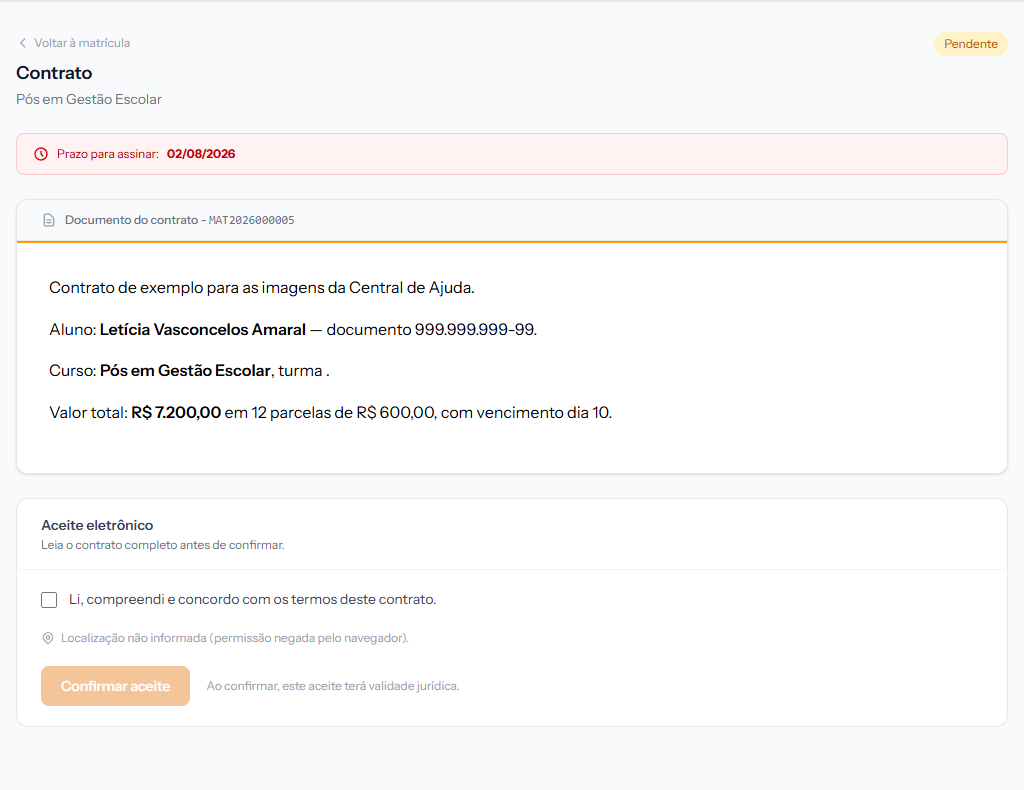 Red strip, but the acceptance panel is still there. Until the routine runs, signing works.
Contract Expired. Once the nightly routine has run, the contract changes to Expired — and then the student sees this:
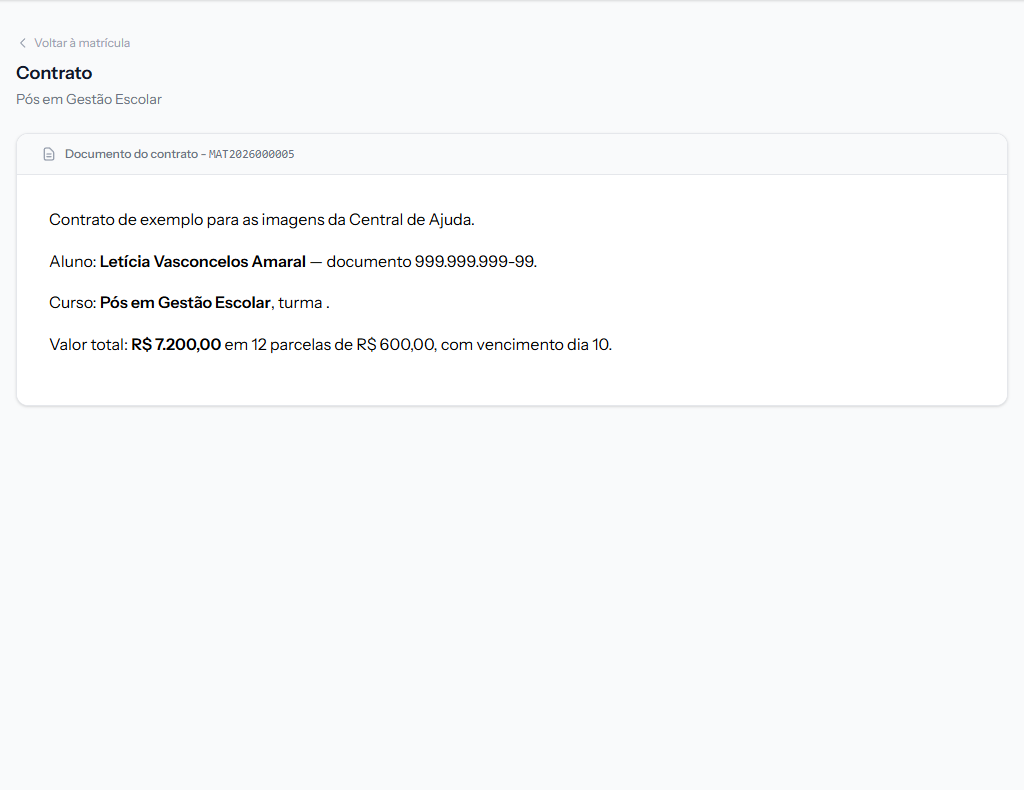 No label, no deadline, no signature panel, no explanation. Just the document.
This is the case that generates support tickets. On the student's side there is no message at all explaining what happened; the screen simply loses its buttons. If the student describes "everything vanished, only the text is left", it is an expired contract. Logged for correction.
On the school's side the information is clear:
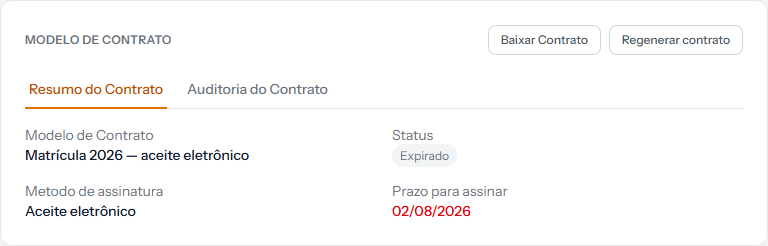 Status Expired, and the date under Signature deadline.
What to do with an expired contract
There is no way to reopen it from the screen. The route is to cancel the enrolment and create a new one, with the same product and the same price table. The new one starts with a fresh deadline.
The Regenerate contract button still shows on an expired contract, and clicking it produces an error. It only works while the contract is Pending. Logged for correction — do not use that button here.
To stop it happening again, revisit the deadline on the contract template: too short a deadline expires contracts for students who were going to sign.
If none of the five explains it
The student signs and the screen comes back showing Pending. They may have two tabs open, one of them stale. Ask them to close everything, sign in again and try once.
Location is not requested, or is refused. It blocks nothing: the signature is valid without location, and the screen says it was not provided.
The contract will not open at all. Confirm which address the student is using. The school's portal has an address of its own, and an old link can point nowhere.
Reviewed on · view as plain text