
What you will get
The paper route run end to end, and a way to avoid the mistake that delays it most: sending a student off to print a contract with nowhere to sign.
First: the template needs signature lines
The system only draws the signature block into the PDF after the contract is signed. In the document the student downloads to print, that block does not exist yet.
Which means the lines to sign on must be in the template's own text. The default template that ships with the system has both — CONTRATANTE and CONTRATADA. A template written from scratch may not, and nothing warns you.
Before using physical signature with a new template, generate a test contract, download the PDF and check there is somewhere to sign.
What the student sees
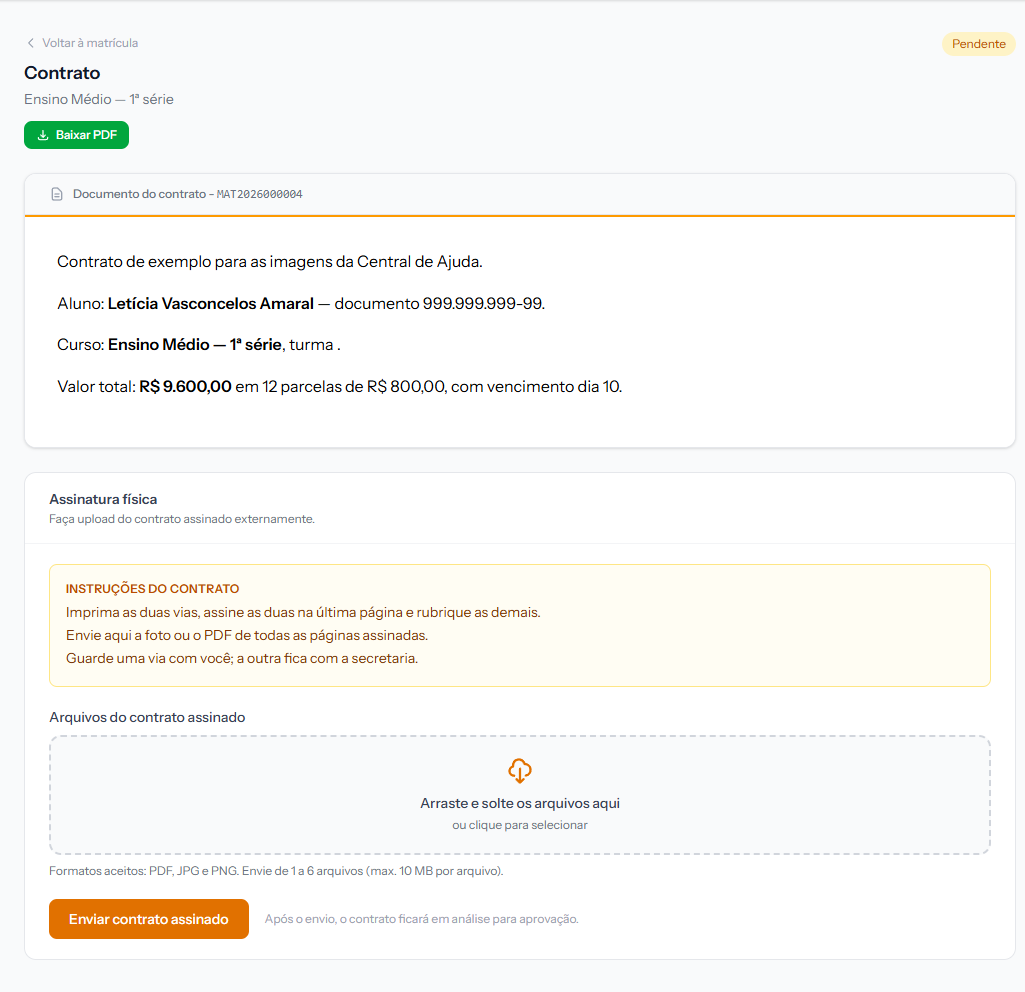 The amber Contract instructions box is the instructions field from the template. If it is empty on the template, the box simply does not appear. The screenshot is from the Portuguese portal; the layout is the same in English.
1. The Download PDF button, in green, at the top. On the other two methods it only appears after signing; here it comes first, because it is what produces the paper.
2. The document on screen, to read.
3. The school's instructions, if the template has that field filled in. This is where you write "sign both copies", "initial every page", "bring the guardian's ID" — whatever the school needs.
4. The upload area, a dashed box that opens the file picker when clicked.
The upload
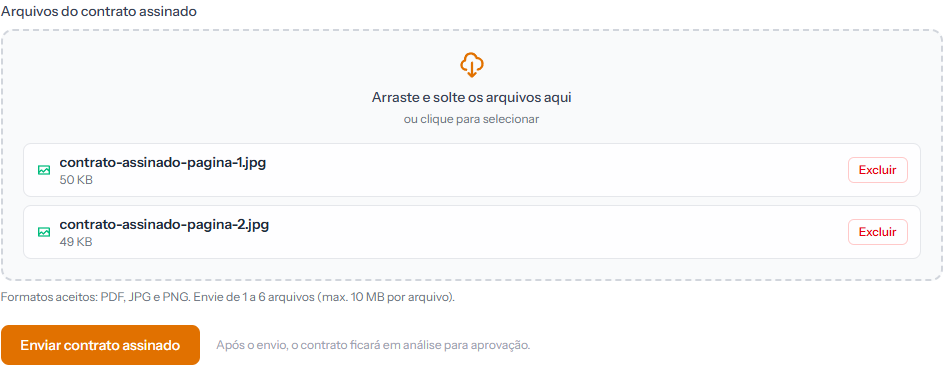 Each chosen file becomes a row with its name, its size and a button that removes just that file from the list.
The rules are written on the screen itself: Accepted formats: PDF, JPG and PNG. Send 1 to 6 files (max. 10 MB each).
Six files is usually enough: one photo per signed page, or a single PDF with everything inside. If the contract runs longer than that, tell the student to merge it into a PDF — most phones do this in the camera or scanner app.
With the files chosen, the student clicks Submit signed contract.
A few labels in this box are still in Portuguese — the drag-and-drop wording and the remove button. Logged for correction.
What happens after the upload
The contract leaves Pending and moves to Awaiting moderation. On the enrolment screen the student reads: Contract submitted and awaiting institution moderation.
And there it sits until somebody at the school approves it. That is why physical signature demands a routine: the Pending Signatures article explains how to stop contracts being forgotten in there.
The student cannot upload again while the previous submission is in the queue. The upload area disappears. It comes back if the school rejects the submission.
How you know it worked
The label changes to Awaiting moderation, and the enrolment shows Contract submitted and awaiting institution moderation. In the school's panel, the row appears in the Pending Signatures queue immediately.
If something goes wrong
The student says they uploaded and the queue is empty. Check they actually clicked Submit signed contract — choosing files sends nothing; they only sit on the screen.
A file is refused. It is outside the three accepted formats, or over 10 MB. A phone photo at full resolution passes that easily; ask them to shrink it or shoot at medium quality.
The student printed it and found nowhere to sign. That is the template, not the system. See the first section of this article.
Reviewed on · view as plain text