
What you will get
The ability to guide a student who has to sign by drawing — and to explain why that signature appears in the PDF while electronic acceptance does not.
What the student sees
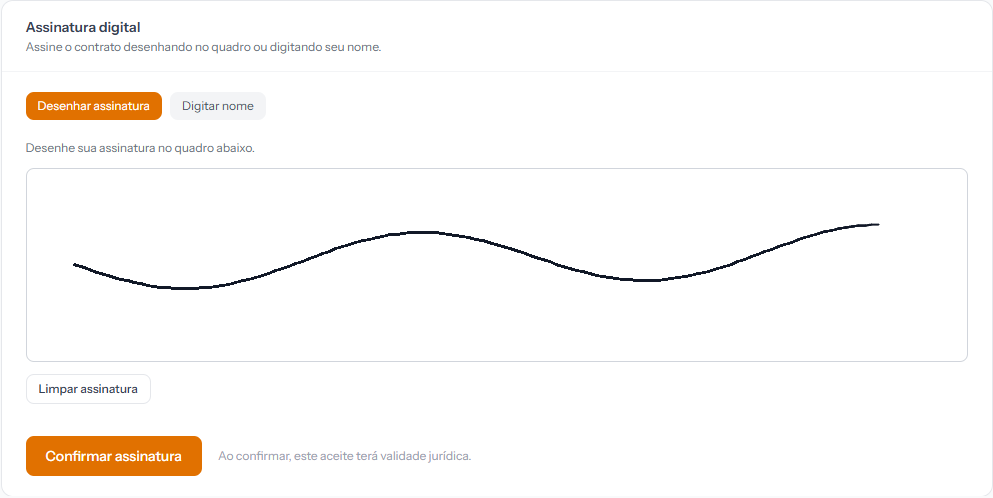 The two buttons at the top switch modes. Clear signature wipes the box so they can start again. The screenshot is from the Portuguese portal; the layout is the same in English.
Below the document, the Digital signature panel offers two routes:
Draw signature — the student signs with a finger on a phone, or with the mouse on a computer. This is the mode already selected.
Type name — the student writes their full name in the Name for signature field and the system generates the signature in a cursive typeface.
Either way, the button is Confirm signature.
Which one to recommend
Drawing on a phone comes out far better than on a computer — a finger on glass is more natural than a mouse. If the student complains the signature looks bad, ask them to open it on their phone, or use the typed mode.
The typed mode also stores the written name, separately from the image. Both carry the same weight.
What gets recorded
Everything electronic acceptance records — date, time, IP address, device, location when allowed, and the frozen contract text — plus the signature image.
That is the practical difference between the two methods: the drawn signature appears inside the contract PDF, in the signature block, above the student's name. Electronic acceptance draws nothing; it records the confirmation.
Where the school checks
On the enrolment, the Contract Audit tab. The event row reads Digital signature, with date, time, IP address and device. The Issue Acceptance Receipt button produces the proof PDF.
To see the drawn signature itself, use Download Contract — it lives in the document, not on the audit screen.
What happens to the enrolment
The same as electronic acceptance: the enrolment leaves Awaiting contract and moves to Awaiting payment (or Active, if there is no open instalment).
No confirmation email goes out on this path either. Logged for correction.
How you know it worked
The contract label changes to Signed and the Download PDF button appears. Open the PDF and the drawn signature is in the block at the end.
If something goes wrong
The message says Provide a signature to continue. The box is empty, or the typed name is shorter than three characters.
The message says Unable to process the digital signature. The drawing came out too small — a very short stroke is refused. Ask them to draw across more of the box.
The student drew and no line appeared. On touch screens they have to drag; a single tap draws nothing.
Reviewed on · view as plain text