
What you will get
The exact moment EduPay considers an installment late, and why an installment can be Overdue without the student having lost anything yet.
The day after the due date
Every night, a routine goes through every Open installment whose due date has passed and marks each one Overdue.
There is no grace period. An installment that was due yesterday and was not paid shows as Overdue this morning, even if the student is going to pay this afternoon.
That is deliberate: the list has to tell the truth about today. Deciding to give the student some room is the school's call, in conversation with them — not the system's, by hiding the delay.
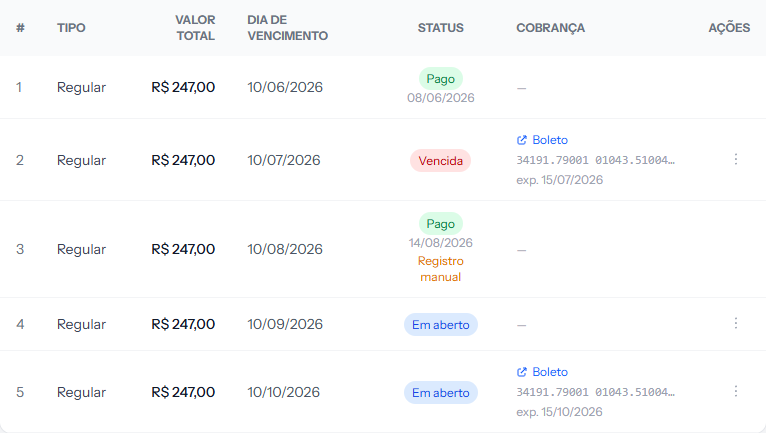 The Overdue tag, in red, appears on its own the morning after the due date.
Card installments fall due too
A card installment has a due date: three days after the enrollment date — or after the billing start date, when that is later. The enrollment fee, in any payment method, falls due on the enrollment date.
If it is not paid by then, it becomes Overdue like any other and follows the same path: arrears notice to the student, loss of class access under the same day threshold and, further on, the protest list.
Older card installments, created when card payments had no due date yet, still have no date and do not become overdue.
Being overdue is not the same as losing access
They are two different things, and this is where the confusion usually starts.
Becoming Overdue happens the day after the due date and is just information on screen: the school starts seeing that installment on the arrears list.
Losing access to the class environment — when your school uses that integration — only happens much later, once the delay passes a threshold the school sets. While the delay is under that threshold, the student keeps studying normally, even with the installment marked Overdue.
Whoever administers the EduPay account adjusts that threshold under Settings, on the billing tab.
How to tell it worked
The day after an unpaid due date, the installment shows the status Overdue on the enrollment screen, without anyone having to touch anything.
If something goes wrong
The installment came due and is still Open. The routine runs overnight. If you are looking the next morning and it has not changed yet, give it a few hours before investigating.
The student paid and the installment is still Overdue. The bank's confirmation can take a few minutes. If it takes longer, there is a dedicated article for that case.
The student lost class access earlier than the school agreed. The threshold lives under Settings, on the billing tab, and applies to the whole school. If it is shorter than what was agreed with families, that is where to adjust it.
Reviewed on · view as plain text