
What you will get
A new payment slip for the same installment, with a new due date. It is the path for the two most common counter situations: the student missed the date, or the student simply cannot find the slip any more.
A duplicate erases nothing. The installment is still the same one, with the same history — what changes is which charge is currently valid.
A duplicate slip only goes out after the current slip stops being valid. The slip is valid until its due date, and Stripe does not allow cancelling a slip before that. While it is valid, a student who lost the paper finds the same slip in the portal, on the installment.
Step by step
1. Open the student's enrollment, under Contracts › Enrollments, and find the installment's row.
2. Click the three dots at the end of the row and choose 2nd Copy.
3. Check the two fields in the window that opens.
- New amount — empty when the installment is not overdue yet. If it is already late, it comes pre-filled with a suggested value, and you can change it.
- New due date — pre-filled with three days from now. Change it if you agreed on another date with the student.
4. Click Save.
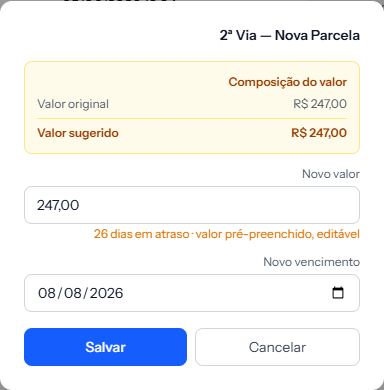 The orange note under the amount says how many days the installment is late, and reminds you the field can be edited.
About the suggested amount
When the installment is overdue, the window shows a box breaking the total into the original amount, a late fee and interest, and puts a suggested value in the field above.
Check that number before saving. It is a suggestion from the system, not a closed calculation — the field is editable precisely for that reason. Compare it against the late-payment rule your school agreed to in its contract, and adjust it if it does not match.
If your school did not configure a late fee or interest on the price table, the suggested value is simply the original amount of the installment.
How to tell it worked
A message confirms the duplicate was issued, and the CHARGE column starts showing the new slip with its new expiry date. The student receives the new slip by email.
If something goes wrong
The 2nd Copy option does not appear. The whole menu only exists for installments that are Open or Overdue. If the installment is already paid or cancelled, there is no duplicate to issue.
A message says the current boleto is valid until a date. The old slip is still valid: "The current boleto is valid until dd/mm/yyyy, and Stripe does not allow cancelling a boleto before it expires. Until then it remains payable (if paid, the payment is recorded). Cancel the charge or create a second copy after that date." No new copy was issued. Until that date, the student pays the current slip, which is in the portal.
The student paid the old slip after you issued the duplicate. Since the duplicate only goes out after the old slip stops being valid, this is rare. If it happens, the payment is recorded on the installment's old row, which shows Paid, and the duplicate's row stays open. Check both before charging the student again.
You only want to cancel the charge, not issue another. That is a different path: Cancel Charge, in the same menu, available to whoever administers the account.
Reviewed on · view as plain text