
What you will get
The ability to read a student record at a glance, and to know where to go when what you want is not on it. You reach it through View on the student list.
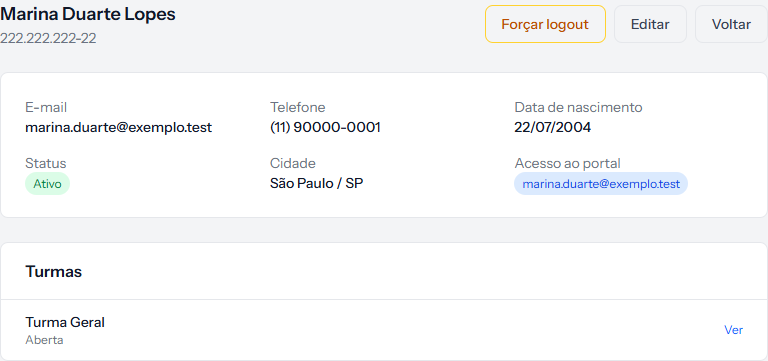 The top panel is the registration data; the bottom one lists cohorts. The Forçar logout button only appears when the student has portal access.
What the record shows
At the top: the full name and, under it, the document.
In the first panel, six fields:
| Field | What it is |
|---|---|
| Where every system message goes | |
| Phone | Registration only; the system never calls or texts |
| Date of birth | Registration only |
| Status | Active or Inactive — a note of yours, which blocks nothing |
| City | Appears only once an address has been filled in |
| Portal access | What the student types to sign in, or No access |
In the second panel, Cohorts: the cohorts they belong to, each with its own status and a View link. When the student is in none, the whole panel stays away.
The three buttons at the top
| Button | What it does |
|---|---|
| Force logout | Drops the student's portal session. They are signed out the next time they click something, and get back in with the same password |
| Edit | Opens the edit form |
| Back | Returns to the student list |
Force logout is for when a student used a borrowed computer and forgot to sign out, or when you suspect the password leaked. It does not change the password — it only ends whatever is open.
What the record does not show
The student's enrolments are not here. Neither are contracts, instalments, or how much they owe. It is the most common question from anyone opening this screen for the first time.
To reach them: Contracts › Enrolments, and the student's name in the search box. The enrolment screen is what brings together the contract, the payment method and the instalment table.
How you know it worked
You can answer three questions at a glance: who to write to (Email), whether they can get into the portal (Portal access), and where they study (Cohorts).
If something goes wrong
Portal access says "No access". The student has no login account. The article on how a student receives access, right next to this one, explains when that happens.
The Cohorts panel is missing. The student is not in any. Cohorts are assigned from the cohort's own screen, under Students › Cohorts.
The city is missing. The address is blank. It is optional unless your school demands it — and the bank demands it to issue a bank slip.
Reviewed on · view as plain text