
What you will get
A student found in seconds, however long the list gets. The screen shows 15 per page in alphabetical order, and there are two ways to dig: the Search box and the Status filter.
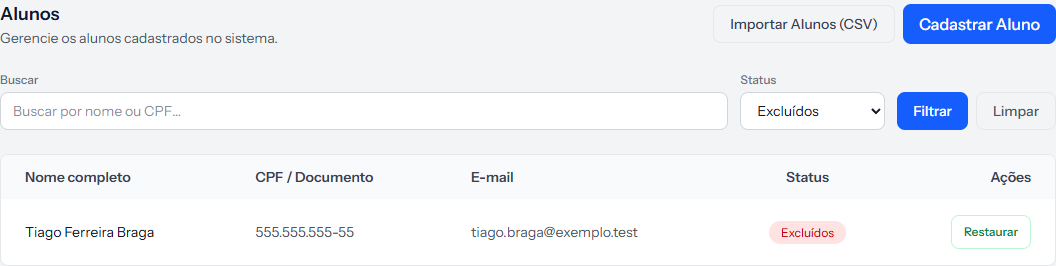 The two work together: what you type into Search is looked for inside whatever Status let through.
The Search box
It looks in three places at once, even though the hint inside the box mentions only two:
- Full name — including fragments. "duar" finds "Marina Duarte Lopes".
- ID / Document — with or without dots, however it was stored.
- Email — including fragments, which helps when you only remember the domain.
After typing, click Filter. Clear brings the whole list back.
The Status filter
| Option | Who shows up |
|---|---|
| All statuses | Everyone on the list |
| Active | The normal state of someone studying |
| Inactive | Anyone you marked as inactive |
| Deleted | Anyone taken off the list — and only here do they appear |
Deleted is the only way to see who left. Under the other three options those records vanish completely.
The columns
Full name, ID / Document, Email, Status and Actions. When a student has no document or no email, the column is blank or shows a dash — that is not an error.
Actions holds View, Edit and Delete. On a deleted student's row, all three are replaced by Restore.
How you know it worked
The footer of the list counts what your filter found — "Showing 1 to 15 of 22 results". That is how you check the search caught what it should.
If something goes wrong
The search cannot find a student you know exists. Check the Status filter: if it is on Active and the student is inactive, they will not show. Try All statuses.
The student vanished from every filter. They were probably deleted. Pick Deleted in the status filter.
Searching by ID finds nothing. Try digits only, then with punctuation. What counts is the format the document was stored in.
You do not see the Delete or Restore buttons. Those two actions belong to whoever administers the account. If you are on the team, they do not appear.
Reviewed on · view as plain text