
What you will get
An understanding of the path from a freshly registered student to being inside the portal — and a way to tell, without guessing, whether they can already get in.
Short answer: the login account is created on its own, alongside the record. You do not have to make anything.
What happens when you save the record
Three things, at the same moment:
1. The system creates the login account. Its identifier is the field your school picked under Settings › Student Portal › Login identifier: the Document (CPF) or the Email.
2. A temporary password is generated — or it is the one you typed, if you chose Set manually.
3. The student gets an email, subject Your portal access. Inside it are the portal address, the login identifier and the password.
That email only goes out if the student has an email on file. Without one, the account exists but nobody told the student.
How to check it worked
Open the student record and look at Portal access.
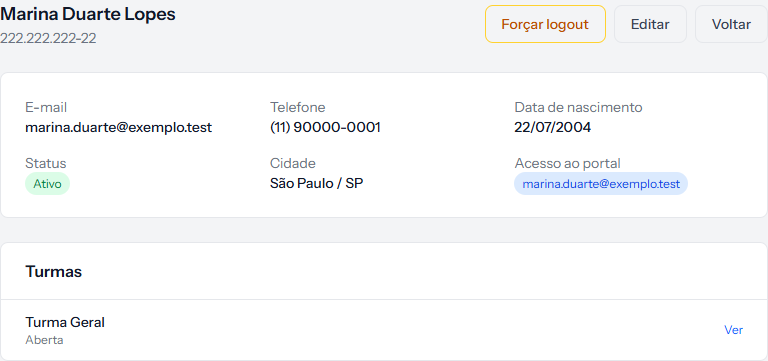 The value on the blue tag is exactly what the student types to sign in. If it says Sem acesso — no access — the account was not created.
The identifier appears tidied up the way the system stores it: email always lowercase, CPF digits only, no dots or dashes. That is how the student has to type it.
The student's first sign-in
- They open the portal address.
- They type the identifier and the temporary password.
- The system forces a password change before letting them through. That holds even when you set the password by hand.
- After the change, they land on the home screen with their enrolments.
On import, the email is optional
When importing a spreadsheet, the access notice only goes out if you tick Send portal access email after import. Unticked — which is how it arrives — the accounts are created in silence.
That is useful: you can build the whole roster ahead of time and tell everyone later. But it is the most common cause of "my students got nothing".
How you know it worked
On the record, Portal access shows the student's identifier. If you can see their inbox, the message Your portal access arrives within seconds.
If something goes wrong
Portal access says "No access". The field your school uses as the login was empty at the moment the record was saved. Filling it in afterwards, through editing, does not create the account — creation happens only at registration. Talk to support about these cases rather than registering the person again: a second record becomes a duplicate student.
The student has an account but no email. The account works; there was just no way to tell them. Pass the portal address and the identifier along by another channel — and note that Forgot my password will not help either, because it needs an email.
You need to resend the welcome email. There is no button for that. The student's route is Forgot my password, on the portal sign-in screen.
Reviewed on · view as plain text