
What you will get
The ability to look at an installment with no charge and know, without guessing, whether the routine will still pick it up or never will.
At 06:00, in your school's time zone, the system walks through the installments and issues charges for the ones approaching their due date. It is the routine that does most of the month's billing work.
The four conditions
An installment is charged when all of these are true at the same time:
- It is Open, or Overdue by no more than 7 days. Paid, cancelled or waived does not qualify.
- It has no charge in force. Nobody is charged twice. The exception is a charge that expired unpaid: that one is replaced by a new one (see below).
- The payment method is boleto or PIX. Card is not part of the routine — the card link goes out the moment the enrollment is saved, and the student opens a new one with the Pay with card button in the portal whenever needed.
- It falls due inside the lead-time window. The window is the number of days set in Settings, counted from today.
The fourth deserves attention: the routine does not look only at tomorrow's installments. It picks up everything falling due from now to the end of the window. And, under the first condition, also an installment that fell due up to 7 days ago with no charge — that is the retry of an issue that failed. An installment overdue for longer than that is not issued on its own: it is left for you to decide, from the installment's three-dot menu.
What happens on screen
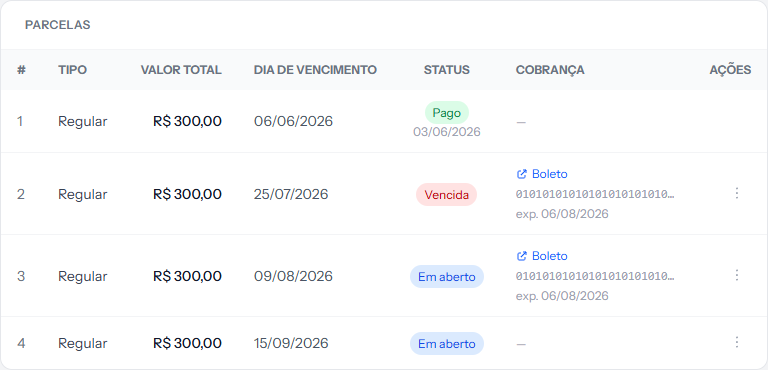 Installment 3 falls due in three days and was issued by the routine. Number 4 falls due in over a month and still shows a dash — it will be issued once it enters the window.
For every installment issued, three things change together: the CHARGE column starts showing the link and the barcode, the student receives the email with the boleto or the PIX code, and the installment's state stays the same. Issuing is not receiving.
A charge that expired unpaid
Boleto and PIX have a validity: they are good until the installment's due date. When a charge expires without being paid and the installment still meets the conditions above, the routine closes the old charge and issues a new one, with an email to the student.
It only does this once it is confirmed that the charge expired without payment. A boleto paid on its last day takes one business day to be confirmed, and in the meantime the routine waits — it does not issue a new boleto to someone who has already paid.
The reasons an installment is left out
1. It already has a charge. The most common case, and the right one. If you issued it by hand yesterday, the routine walks past it.
2. The school has no payment account connected. Here the routine does not
fail — it never even starts. A school with no connected account is skipped
entirely, and no message appears anywhere. If none of your school's
installments are being issued, start at Integrations › Payment Gateway.
3. The school's currency does not match the payment method. Boleto and PIX are Brazilian methods and are only issued when the configured currency is the real. In a school set to another currency, those installments are skipped.
4. The method is not enabled on the receiving account. If your account has not had PIX enabled yet, for instance, PIX installments are skipped — even with everything correct on the school's side. The Accepted payment methods box, on the receiving screen, shows what is in force.
5. Someone at the school cancelled the charge. An installment with the Charge cancelled on dd/mm/yyyy badge in the CHARGE column is not issued again on its own — the cancellation was a decision, and the routine respects it. To resume billing, issue it from the installment's three-dot menu.
6. The enrollment was cancelled. From it, the routine only issues the termination penalty, when there is one.
7. The school's EduPay subscription was cancelled or expired. Then EduPay stops billing on the school's behalf, and no installment is issued. If the EduPay fee is only late, billing of the students carries on normally.
When issuing genuinely fails
Failing is different from being skipped. Skipped is a decision of the rule; failing means the charge was attempted and refused.
When it fails, whoever administers the account receives an email naming the installment and the reason. The remaining installments keep being processed normally — one failure does not bring the routine down. And the installment that failed is not forgotten: the routine tries again on the following days, including after the due date, for up to 7 days.
The most common cause is missing data on the student's record. A boleto requires name, tax ID and full address; without any one of them, issuing comes back refused.
Running it ahead of time
There is no "run now" button. If an installment is urgent, the way is to issue it by hand, from the three-dot menu on the installment itself — and then the routine will not issue it again, because condition 2 no longer holds.
If something goes wrong
An installment fell due and never had a boleto. Walk the four conditions in order. Nine times out of ten it is a disconnected payment account — the only reason that leaves no trace at all on screen.
The installment shows the Charge cancelled on… badge and nobody remembers cancelling it. Someone with owner access cancelled its charge. The routine will not issue it on its own; if it should be billed, issue it from the three-dot menu.
The routine issued it, but the student did not receive anything. Issuing and emailing are separate things: the charge exists in the student's portal even when the email does not go out. Check the address on their record.
A charge-failure email arrived. It names the installment and the reason. If it mentions a document or an address, the fix is on the student's record — then just issue by hand, without waiting for the next night.
Everything looks right and nothing was issued. Check the time zone under Settings › General. A wrong time zone makes the routine run at another time of day, and it feels like it never ran.
Reviewed on · view as plain text