
What you will get
The ability to explain, over the phone, where the student finds their charge and how to pay it — without emailing anything again.
The portal shows every installment of the enrollment, in any state, and offers payment right on the line of the one still open.
The path, in two screens
1. The student signs in to the portal with their identifier and password.
2. They click the enrollment. The enrollment screen opens with the course details, the contract and, further down, the Payment Schedule box.
That is all. There is no separate "finance" screen: installments live inside the enrollment they belong to. A student with two enrollments has two schedules, one in each.
What they see in the schedule
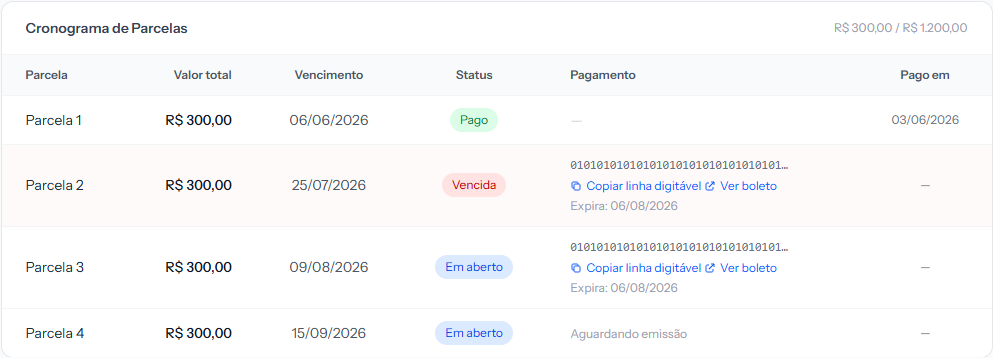 Look at installment 4: it has no charge yet, so it shows Awaiting issuance instead of a boleto. That is not an error — the system is waiting for the issuing date to arrive.
The corner of the box shows how much of the enrollment total has been paid. Then come the columns:
| Column | What it holds |
|---|---|
| Installment | Its number, or Enrollment fee when it is the fee |
| Total value | The amount of that installment |
| Due date | The day to pay. On card, it is the three-day deadline the student has to pay |
| Status | Paid, Open, Overdue, Cancelled, Waived or Outstanding debt |
| Payment | This is where they pay |
| Paid on | The date the money arrived |
How they pay, by payment method
The Payment column changes with the method chosen on the enrollment. It only appears on Open and Overdue installments — a paid one is never charged again.
Boleto. The barcode line appears, plus the Copy barcode button and the View boleto link, which opens the document to print or to pay through the bank app. Below it, Expires with that boleto's deadline.
PIX. PIX QR Code appears, opening the image to scan, and Copy PIX code, to paste into the bank app.
Credit card. The Pay with card button appears and leads to the payment screen. That is where the student chooses how many instalments to split it into.
The button appears on every open or overdue card installment, even before the school generates a link, and opens a valid payment on each click. So the student does not depend on the link in the email: the email button, in fact, brings them back here.
 A card enrollment has a single installment, for the full amount — the one splitting the payment is the student's card issuer, not the school.
Billing suspended. When someone at the school cancels an installment's charge, the portal shows Billing suspended by the institution. If in doubt, contact the office. instead of the buttons. It does not come back on its own: it only reappears when the school issues it again from the panel.
On the phone it is the same thing, as cards
Most students will open this on a phone. There the box stops being a table and becomes one card per installment, with the same buttons.
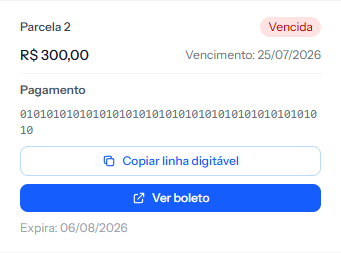 The buttons take the full width on a phone. Copying the barcode is the most used one: the student pastes it straight into the bank app.
After they pay
They do not need to tell anyone. When the money arrives, the installment turns to Paid on its own and the date shows up under Paid on.
How long that takes depends on the method: PIX and card are a matter of minutes; for boleto, banks usually take until the next business day. Until then the installment keeps showing as it was — and that is normal.
The second copy is requested from you
The portal has no second-copy button. The school issues it, from the admin panel.
Before the student needs to ask, the system tries to sort it out on its own: when a boleto or a PIX charge expires unpaid, the daily routine generates a new charge, for the same amount, and the student gets another email. That holds for up to seven days after the installment's due date. After that, the way out is a second copy — so it is worth agreeing with the student on how they reach you: phone, email or message.
The boleto email they receive says exactly that: "After the due date, request a new copy from the institution."
If something goes wrong
"The installment shows nothing to pay." Check its state. If it says Awaiting issuance, the charge has not been generated yet — either the issuing date has not arrived, or the school's payment account is disconnected. You can issue it right away from the panel.
"It says Billing suspended by the institution." The school cancelled that installment's charge, and on the panel it carries the Charge cancelled on… badge. To bill it again, issue it from the installment menu: Issue Boleto, Generate PIX or Card Link.
"I copied the barcode and the bank rejected it." Ask them to use the View boleto link and pay from there. If the boleto is past the date shown under Expires, it is no longer payable. Up to seven days after the due date, a new boleto arrives on its own; after that, the way out is a second copy.
"I clicked Pay with card and got a message saying the payment could not be opened." It is a momentary failure opening the payment screen. Ask them to try again shortly.
"I paid and it is still open." If the payment was today, just wait. If more than a business day has passed, check the panel — it may have been paid outside the system, and then someone at the school has to record it.
"I cannot see my enrollment." The student may have signed in with a different identifier, or the enrollment is cancelled. Their record in the panel settles it in seconds.
Reviewed on · view as plain text