
What you will get
A first sign-in that runs to the end, instead of a student stuck waiting for an email that may never arrive.
The normal path
1. Access is created with the record. When you register the student with the portal-access option, the system creates the account and sends the welcome email with a temporary password.
2. The student opens the portal address.
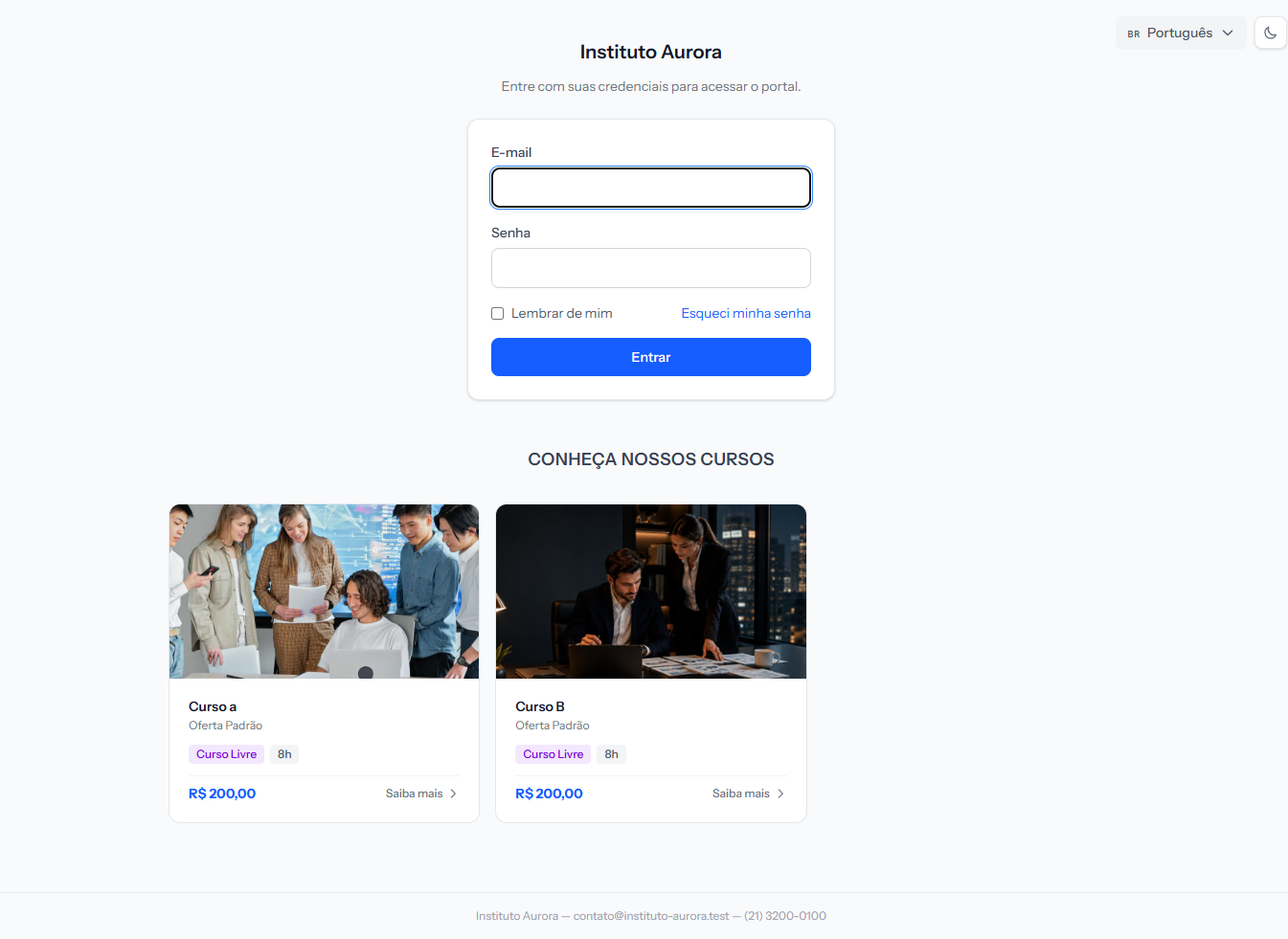 The first field's label follows the school's configuration: Email or Document (CPF). The screenshot is from the Portuguese portal; the layout is the same in English.
3. They sign in with the temporary password.
4. The system demands a new password before anything else.
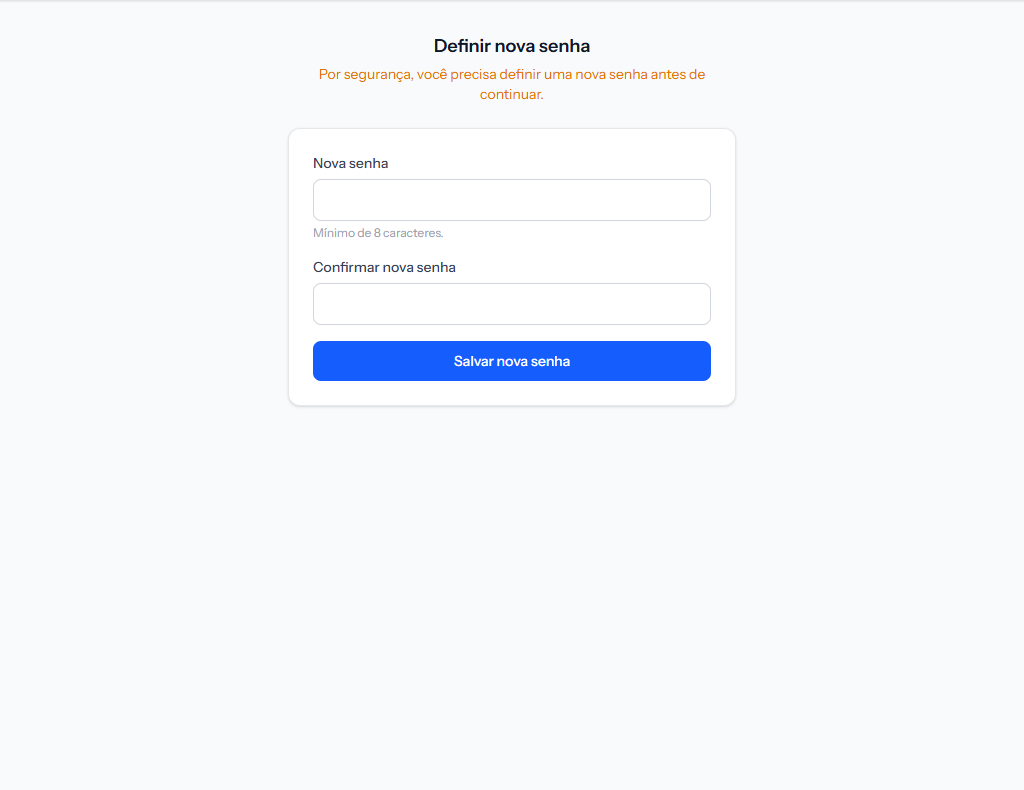 The wording is plain: for security, a new password must be set before continuing. Minimum 8 characters.
There is no way to skip this step. Until the password is changed, every portal address returns the student to this screen — tested: going straight to the home page bounces back here.
5. Password changed, they land on their own panel.
Why the change is mandatory
The temporary password travelled by email and is sitting in their inbox. Changing it at first sign-in ends that password's life and guarantees only the student knows the current one — including as against the school.
That matters when the contract is signed by electronic acceptance: the signature carries more weight when nobody else could have signed in.
The portal address
It is the address assembled on the Student Portal tab of Settings, right below the first field. Copy it from there — typing it from memory is the origin of half the "I cannot get in" calls.
If the student did not get the email
In order:
1. Is there an email on the record? With none, there is nowhere to send it.
2. Is the email spelled correctly? One wrong character and the message disappears silently.
3. Have they checked spam? Automated mail from a new sender lands there often.
4. None of the above? Ask them to use Forgot my password on the sign-in screen. It is the fastest route and does not depend on the first email having arrived.
How you know it worked
The student signs in and sees a greeting with their name at the top, with their details and enrolments below.
If something goes wrong
The new password is refused. It is under 8 characters, or the confirmation does not match.
They sign in and land on the password screen every time. That is expected until the change is completed. They need to fill both fields and save.
They say the temporary password does not work. Either it has already been changed, or the email is old. Forgot my password solves both.
Reviewed on · view as plain text