
What you will get
Familiarity with the screen the student has in front of them, without asking for a screenshot. Almost every student ticket starts here.
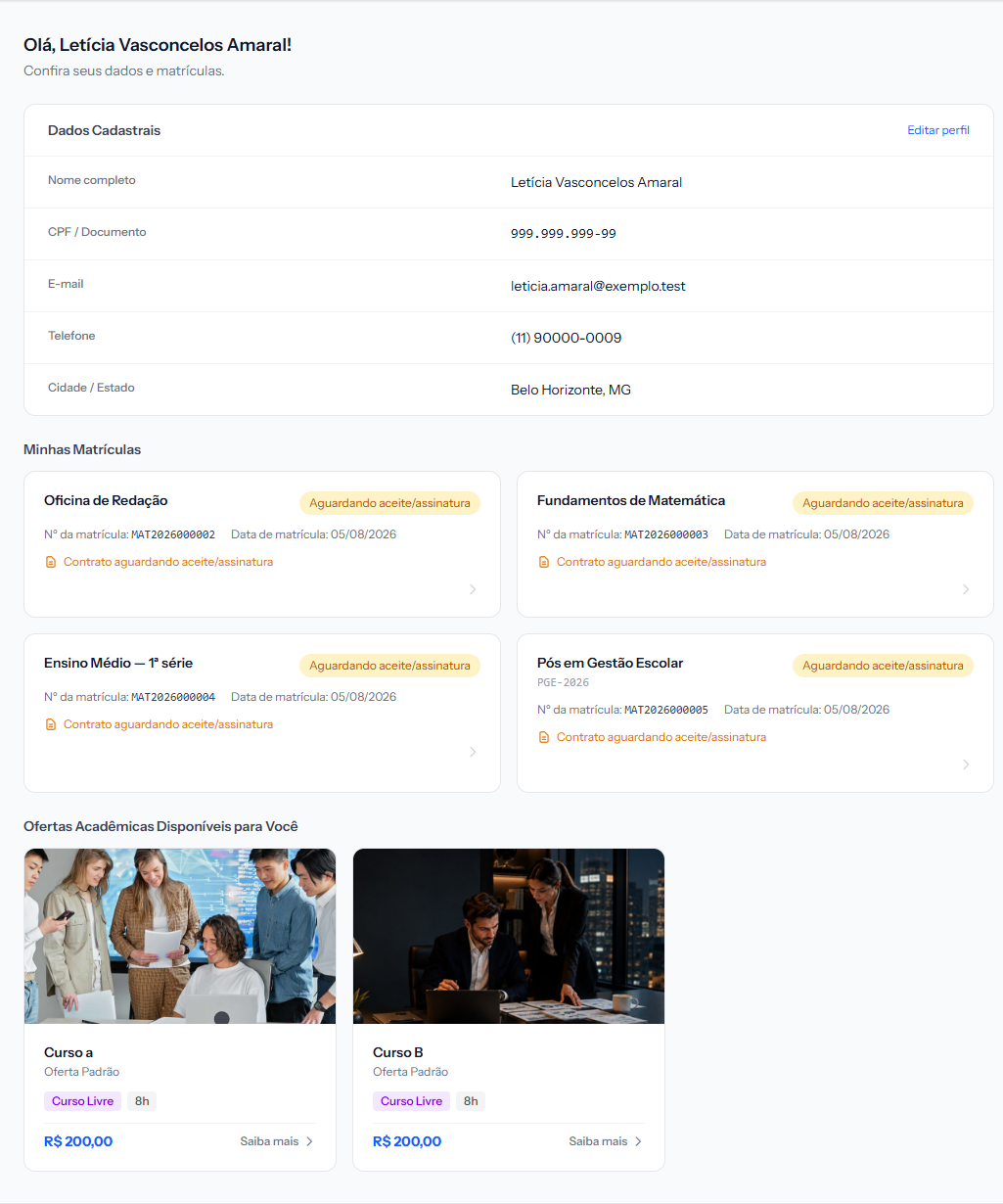 Three blocks, always in this order: their details, their enrolments, and the offerings the school has published. The screenshot is from the Portuguese portal; the layout is the same in English.
The header
The school's logo on the left; on the right, the language, the dark-mode button, the student's name and Sign out.
The logo is the one you uploaded under Settings › General — and the dark version is what appears when they switch dark mode on.
Personal details
Five rows: full name, ID document, email, phone and city / state. In the corner, an Edit profile link.
What they can edit there depends on what you allowed in the Student Portal tab of Settings. Name and email have their own switches; email editing is locked when login is by email.
My Enrolments
One card per enrolment, carrying:
- The product name and the status label in the corner.
- Enrolment number and enrolment date.
- A call-to-action line, when something needs doing — Contract awaiting signature is the most common.
The whole card is clickable and leads to the enrolment detail, with the instalment schedule.
The student sees all of their enrolments, including old ones. If they studied three courses, all three appear.
Available offerings
The bottom block shows the courses the school has published in its catalogue. This is where a student enrols on their own, when the school uses sales pages.
If the school has published nothing, the block does not appear.
It also disappears while the school's EduPay account is suspended for a late subscription payment. During that time the portal still opens so the student can see their enrolments and pay their instalments, but enrolling through the catalogue is closed.
The footer
The school's contact details. What appears there is your choice — four switches in the Student Portal tab: email, phone, tax ID and address.
It is worth checking that at least one contact channel is on. A portal with no contact pushes the student towards whatever number they find on Google.
If something goes wrong
The student says they cannot see their enrolment. Check it is on the right record — a duplicate student is the most common cause.
They say the portal "does not look like the school". The logo is missing under Settings › General, or they are in dark mode and no dark logo was uploaded.
They cannot find the contract. The contract lives inside the enrolment, not on the home screen. Ask them to click the card.
Reviewed on · view as plain text