
What you will get
The instant-transfer code for an installment, ready in seconds, from the same three-dot menu on the installment's row. It is the fastest path when the student is with you right now — at the counter or on the phone — and wants it settled.
The advantage over a payment slip is the turnaround: the money usually lands within minutes, and the installment is settled on its own shortly after.
Before you start
- The enrollment has to use instant transfers. The payment method is chosen when the enrollment is created and applies to all of its installments. On a slip enrollment the menu offers a slip — not this. If the installment has no charge yet, the same menu shows Change to PIX, which switches the method of that installment only.
- The account that receives the money has to support it. Not every account does. If yours does not, the Generate PIX option simply does not appear in the menu, even on the right kind of enrollment. In that case the installment can switch to a method the account does charge, through Change to … in the same menu.
- The installment has to be open or overdue, and not have a charge issued yet.
Step by step
1. Open the student's enrollment, under Contracts › Enrollments.
2. Scroll down to the installments panel and find the row you want to charge.
3. Click the three dots at the end of the row, in the ACTIONS column.
4. Click Generate PIX. There is no confirmation: the code is generated straight away.
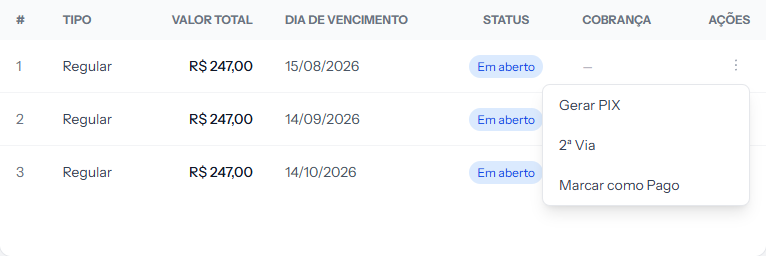 On an instant-transfer enrollment the menu offers Generate PIX instead of Issue Boleto. What decides that is the method chosen on the enrollment.
How to tell it worked
The CHARGE column on that row stops showing a dash and starts showing a link labelled PIX. The student gets the code by email and also finds the same block in their own portal.
The installment's status stays Open — it only turns Paid once the money arrives. Because instant transfers are fast, that usually happens within minutes, and you do not have to do anything: the settlement is automatic.
How long the code is valid: until 23:59 on the installment's due date, Brasília time, for at most 14 days. If the installment falls due today or is already overdue, the code is valid for 3 days. If it expires unpaid, the daily routine generates a new code on its own while the installment is open within the lead time or overdue by up to 7 days.
If something goes wrong
The menu has no Generate PIX. Three possibilities, in order of likelihood: the installment does not use instant transfers — and then the menu shows Change to PIX, if the account supports them; the account that receives the school's money does not support them; or that installment already has a charge issued — in which case the CHARGE column already shows a link.
The student paid and the installment is still open. Wait a few minutes: the bank's confirmation is not instant. If it takes longer than that, there is an article dedicated to that case.
The student cannot find the code. It is in the email and in the student portal. You can also open the link in the CHARGE column and send it over WhatsApp.
Reviewed on · view as plain text