
What you will get
The right enrolment, quickly. The screen is Contracts › Enrollments, and it has a search box and two filters.
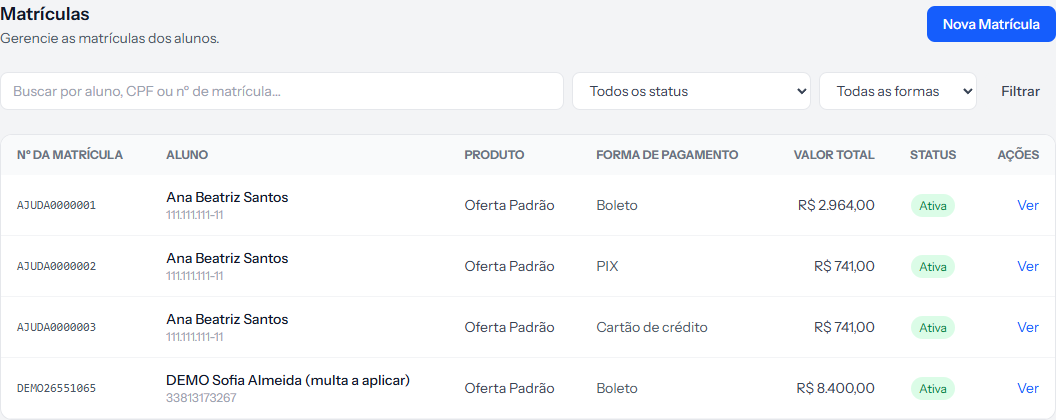 The search takes three different things, and the hint inside the box lists all three.
The search
The field looks for the student's name, their ID or the enrolment number — and takes a fragment of any of the three.
Each row shows the student with their document under the name, which settles namesakes without opening anything.
The two filters
Status splits by situation: Awaiting contract, Awaiting payment, Active, Cancelled, Completed.
Payment method splits by bank slip, PIX and credit card.
Both combine with the search. Click Filtrar to apply.
Three searches that carry the day
"Who has not signed yet?" — Status on Awaiting contract. That is the queue of stalled contracts. Contracts › Pending Signatures has the same information in more detail.
"Who enrolled and paid nothing?" — Status on Awaiting payment. These are the enrolments stuck between signature and first instalment.
"How many cancellations did we have?" — Status on Cancelled. Worth looking at now and then: cancellations in a row usually share a cause.
What the list shows
Enrolment number, Student with document, Product, Payment method, Total value, Status and Actions — which carries only Ver.
Everything you do to an enrolment happens inside it, not from the list.
How you know it worked
The filter returns exactly the rows you expected, and each one's total matches what was sold.
If something goes wrong
You cannot find an enrolment you know exists. Check the status filter — set to one situation, the others do not appear.
Searching by ID returns nothing. Try digits only, then with punctuation. What counts is the format the document was stored in.
The list is enormous. Combine both filters. Status Active plus one payment method usually cuts it down a lot.
Reviewed on · view as plain text