
What you will get
A course pulled from sale without wrecking the enrolments already made on it. Two paths with similar names and very different results.
Only the school owner can delete. If you are on the team, the Delete button does not appear — but you can deactivate, which is the recommended path anyway.
Deactivating is the safe path
Open the offering under Edit, change Status to Inactive and save.
What happens:
- It leaves the product list when creating a new enrolment.
- It leaves the list of offerings that can be linked to a trail.
- Existing enrolments stay untouched. Name, contract and instalments change in no way.
It is reversible: switching back to Active puts the offering back in circulation.
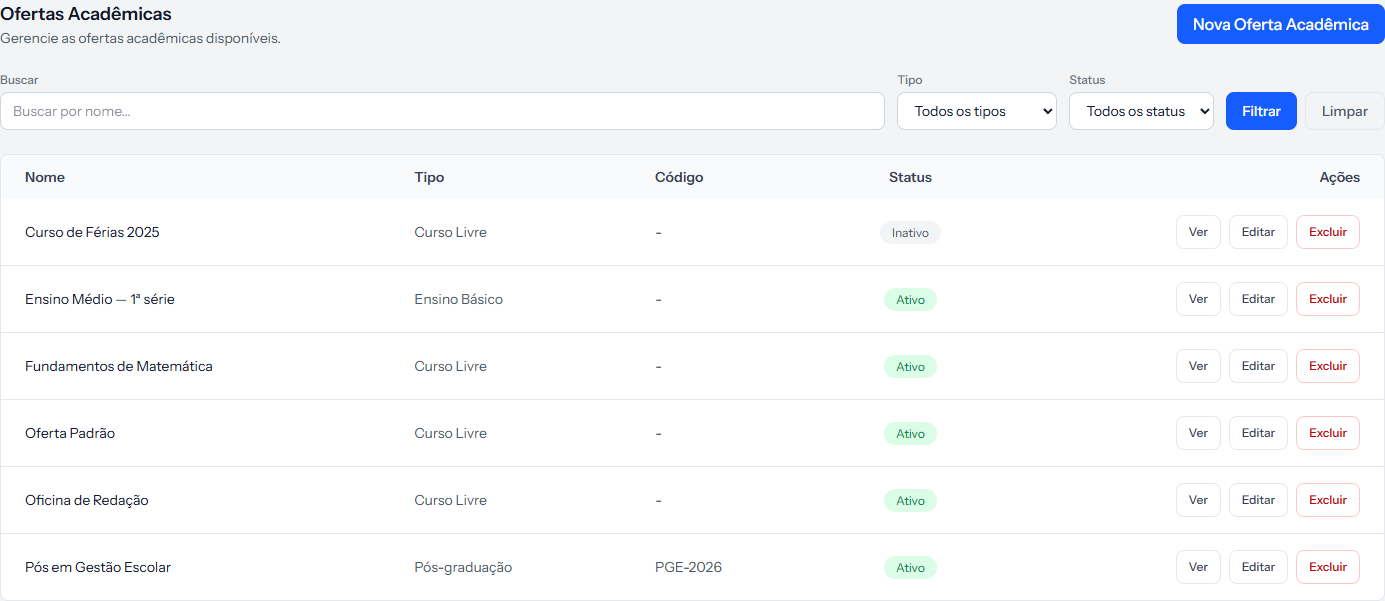 The inactive offering still shows up here, with the grey tag. It only disappears from where selling happens.
Deleting erases, and does not ask
The Delete button on the list removes the offering for good. It shows the browser's standard confirmation and obeys.
What it does not do, and should: it never checks whether enrolments exist on that offering. I checked on the real screen — I deleted an offering that had an active enrolment, and the deletion went through with the message Academic offering deleted successfully., with no warning at all.
What happens to the enrolment: it stays active, with the same contract and instalments, but the Product field now shows a dash. The enrolment stops saying what was sold.
There is no undo through the interface. The offerings list has no deleted filter and there is no restore button.
The rule of thumb
Always deactivate. Only delete what was never used — the offering created by mistake, the duplicate, the test one. If a single enrolment exists on that product, the path is Inactive.
Editing an offering in use
Editing is safe, with one common-sense caveat:
- Changing the name changes what appears on screens and in contracts generated from then on. Contracts already issued keep the wording they were generated with.
- Changing the base price touches no enrolment. It is a reference; the financial plan does the charging.
- Changing type or modality is classification only.
If something goes wrong
You deleted by accident. It cannot be restored from the screen. Create the offering again with the same details and talk to support about the enrolments left without a product.
The deactivated offering is still on the list. That is expected: it leaves where selling happens, not the registry. Use the Status filter to separate them.
You want to stop charging that course's students. Deactivating the offering does not do that. Instalments come from the enrolment, and that is where you cancel.
Reviewed on · view as plain text