
What you will get
A product registered and ready to go into an enrolment. The path is Academic › Academic Offerings and the blue New Academic Offering button.
Only two fields are required: Type and Name. Everything else is description — but worth filling in, because that is where the contract wording and the trail summary come from.
Step by step
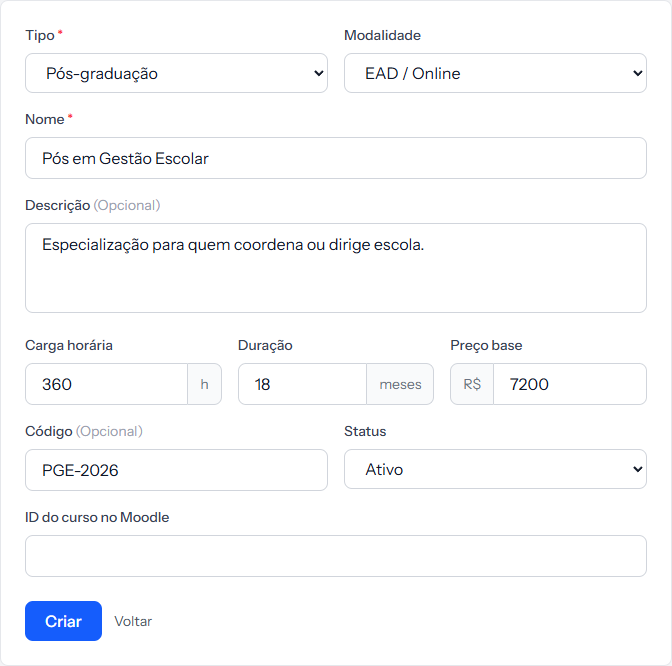 The red star marks the two required fields. The last one, for Moodle, only appears if you have connected the class environment.
1. Pick the Type. There are four, and the choice is classification only — none of them changes any billing rule:
| Type | For what |
|---|---|
| Postgraduate | Specialisation, MBA, master's |
| Undergraduate | Degree programmes |
| K-12 | Early years, primary, secondary |
| Free Course | Workshops, short courses, extension |
2. Pick the Modality if it applies: Online / Distance, In-person or Hybrid. It shows on screens and in the trail summary.
3. Write the Name. It is what the family reads on the contract and in the portal. Write it the way the school advertises it.
4. Fill in the Description if you want. A paragraph fits — up to 2,000 characters.
5. Enter workload, duration and base price.
- Workload in hours.
- Duration in months.
- Base price is a reference, and it is what a trail adds up. It does not charge anything — the financial plan sets the amount and the instalments.
6. Use the Code if your school already has its own numbering. It is free text.
7. Leave the Status as Active and click Create.
The Moodle field
If your school has connected the class environment, Moodle course ID appears at the bottom of the form.
It is a note, nothing more. What actually drives syncing today is the Moodle cohort ID, which lives on the cohort — not this one. Filling it in here switches nothing on or off.
How you know it worked
The screen switches to the new offering with the green banner Academic offering created successfully. From then on it appears in the product list when creating an enrolment, and it can be linked to a trail.
If something goes wrong
The offering does not show up when creating an enrolment. Only offerings with the status Active are offered.
You do not know what to put in Base price. Leave it blank. It is only a reference and the number a trail adds up; charging comes from the financial plan.
You want one offering per cohort. You do not need it. A single offering serves every cohort of the same course — the cohort is what carries the dates.
Reviewed on · view as plain text