
What you will get
A clear view of your account with EduPay — plan, amount, next charge and history — without having to ask anyone.
The path is My Subscription.
This is the account your school pays to EduPay. Do not confuse it with receiving money from your students, which is a different thing and lives under Integrations. Both involve money and they break in different places.
The screen
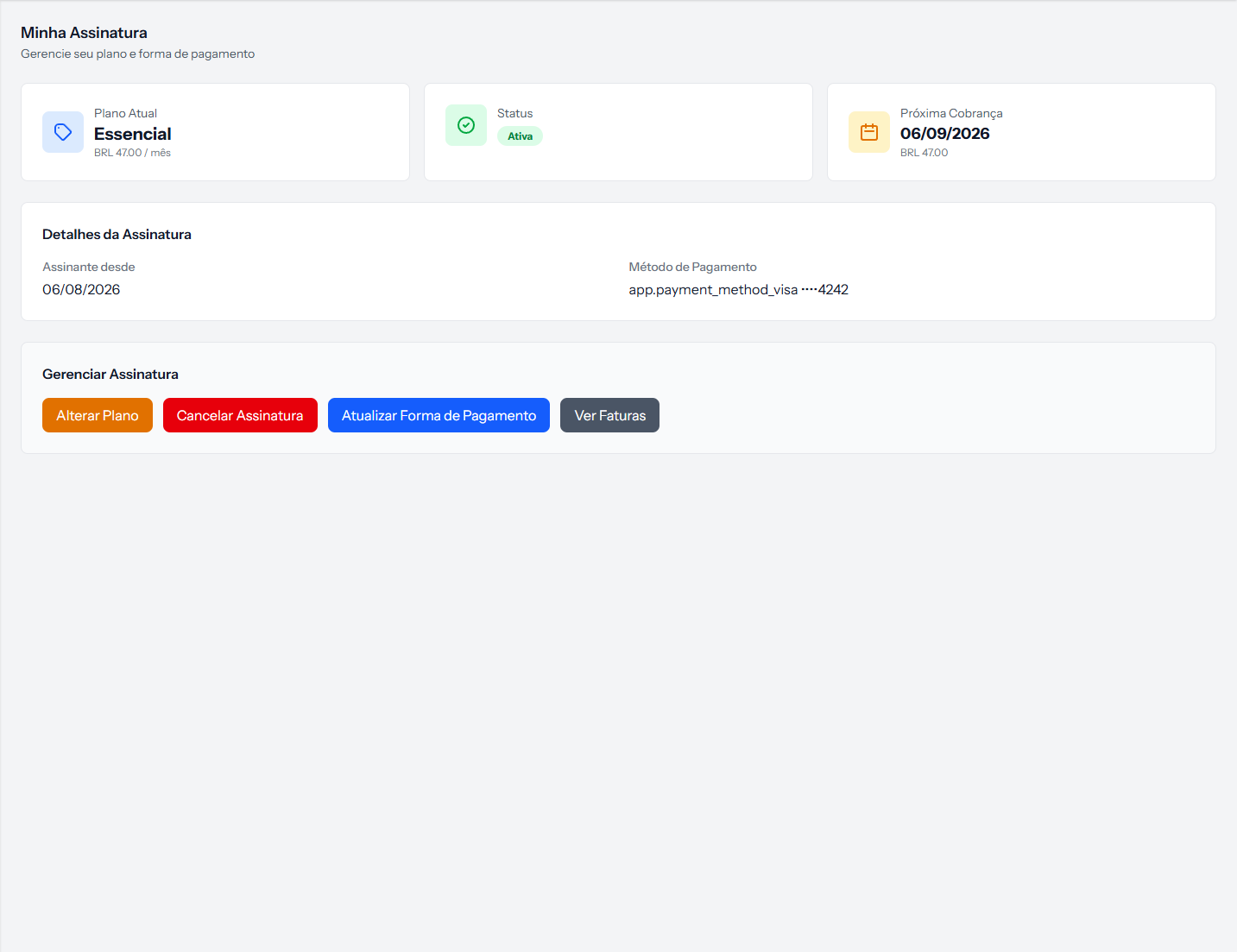 Three cards at the top, the details in the middle and the four actions below. The screenshot is from the Portuguese panel; the layout is the same in English.
Current Plan carries the plan name and the amount with its billing period.
Status is the subscription's standing. Active is what you want to see.
Next Charge is the date and amount of the next debit. It is the number your finance people need.
Subscription Details carries how long you have been a subscriber and the payment method on file, with the card's last four digits.
The four actions
| Button | What it does |
|---|---|
| Change Plan | Switches to another plan — the route when you have hit the student limit |
| Cancel Subscription | Ends the subscription at the close of the period already paid |
| Update Payment Method | Changes the card |
| View Invoices | Opens the history |
Cancelling does not cut access immediately. The subscription runs to the end of the period already paid, and the screen starts showing the end date. Until then, it can be resumed.
The invoices
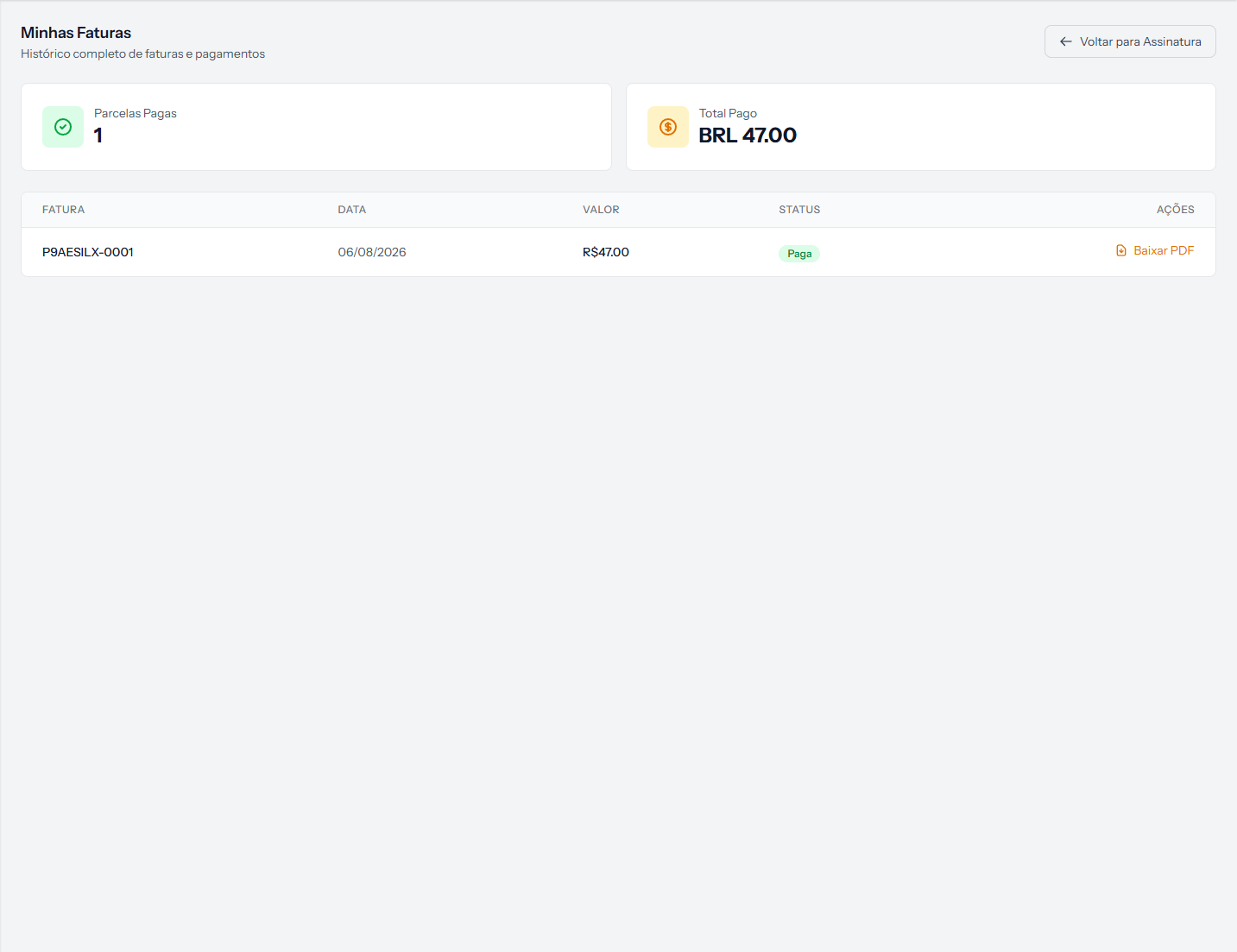 Two totals at the top and one row per invoice, each with a download button.
Each row carries number, date, amount, status and the download button. This is where the document for your accountant comes from.
What to do when a payment fails
A declined card does not take the school down straight away: there is a grace period before any suspension, and the screen says how many days are left.
What fixes it is Update Payment Method. Once done, the charge is retried.
What the subscription changes for your students
| Subscription status | What happens to student billing |
|---|---|
| Up to date | Everything as normal |
| EduPay fee overdue | Student billing carries on. If the school ends up suspended, the student portal opens only its financial part — signing in, seeing the enrolment, paying, viewing the contract and the profile. Catalogue sales and access to the class environment are closed |
| Cancelled or ended | After the paid period ends, EduPay stops charging on the school's behalf: it issues no charges, sends no arrears notices or reminders, suspends nobody in the class environment and sends nothing to protest. Payments on charges already issued are still recorded |
In short: falling behind on the EduPay fee does not stop the money coming in from students; ending the subscription does.
Two screen details that confuse
The payment method may appear as
app.payment_method_visa, with that exact text. It is a label left untranslated; read it as "Visa", and the four digits beside it are your card's. Logged for correction.
The amount appears in two formats on the same screen —
BRL 47.00in one place andR$ 47,00in another. It is the same amount. Logged for correction.
How you know it worked
The Status card shows Active, and Next Charge carries a future date with the plan's amount.
If something goes wrong
The screen says there is no active subscription. Your school has no plan contracted yet. The screen itself points you to support.
The next charge is not the amount I expected. Check the plan on the first card: switching plan mid-period produces a pro-rata adjustment.
I hit the student limit and do not know which plan to pick. The limits article shows where to see how much you use today, which is the number that decides.
Reviewed on · view as plain text