
What you will get
The student portal configured before anyone is on file — the only moment when these choices are free.
The path is Settings › Student Portal.
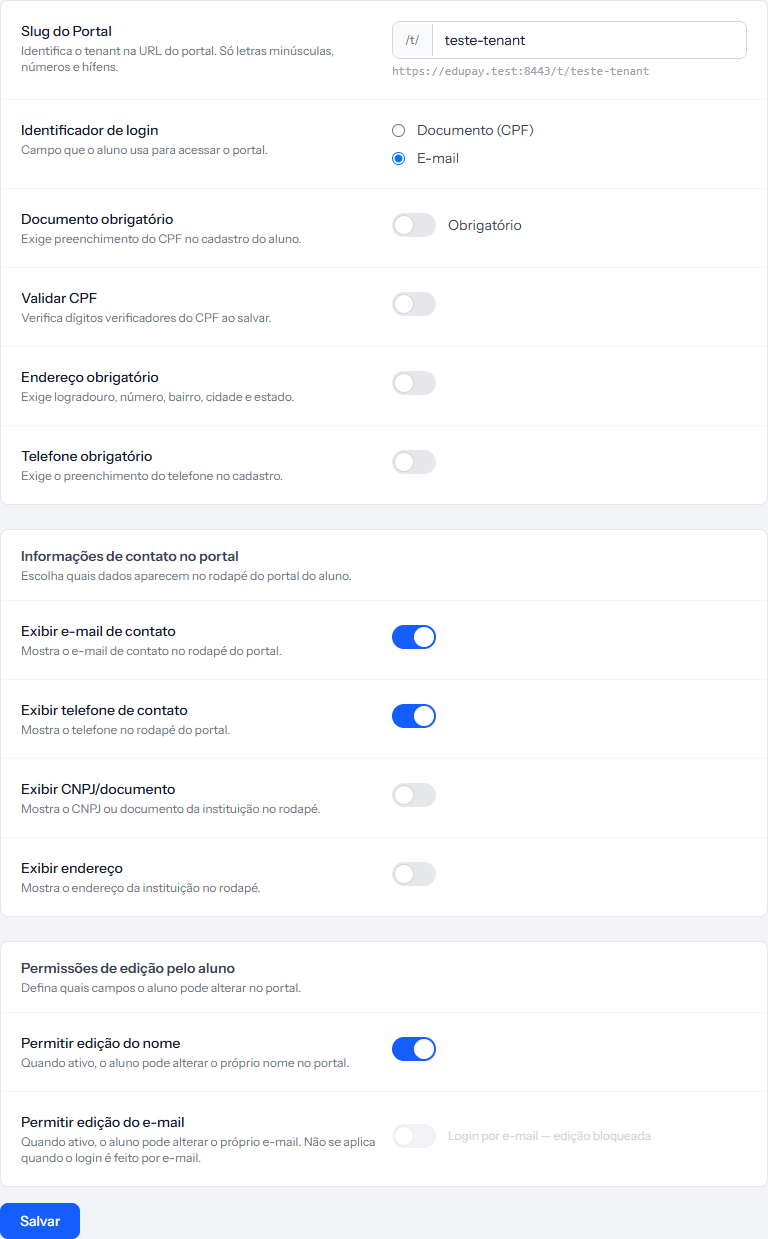 The full portal address appears in grey under the field. That address is what you send to students. The screenshot is from the Portuguese panel; the layout is the same in English.
The portal address
The first field defines the final part of your portal's address. Below it, the system shows the assembled address, ready to copy.
It accepts lowercase letters, numbers and hyphens, up to 60 characters.
That address is unique across every school in the system. If the one you want is already taken by another institution, it is refused. Choose something specific to your school, not a generic word.
Changing it later breaks every link already sent. Every email the system has sent, every link pasted into a group chat, every shortcut a student saved starts pointing nowhere. If you must change it, warn students first.
Login identifier
Two options, and this is the most consequential choice on the screen:
| Option | The student signs in with | Good when |
|---|---|---|
| Document (CPF) | Their ID number | The school has everyone's ID and not everyone has email |
| Their email | The school communicates by email and not every student has an ID on file |
Choosing Document (CPF) switches Document required on automatically, and it cannot be switched off while that option is active — which makes sense: with no document the student would have no way in.
The record requirements
Four switches that change the student form:
- Document required — demands an ID number on the record.
- Validate CPF — checks the ID's check digits on save. Refuses invented ones.
- Address required — demands street, number, district, city and state.
- Phone required — demands the phone number.
Switch on what the contract needs. The contract prints the student's address; if the address is not required, a contract can come out with gaps.
The portal footer
Four switches decide what appears in the student area's footer: contact email, phone, tax ID and address. The values come from the General tab.
The test is simple: what should the student be able to find without asking.
What the student may edit
Two switches at the end of the screen:
- Allow name editing — the student corrects their own name in the portal.
- Allow email editing — the student changes their own email.
The second switches itself off when login is by email, and the screen says so. That also makes sense: letting the student change their email would be letting them change their own key to the door.
How you know it worked
The page returns to the Student Portal tab with the green banner. Open the address shown under the first field in a private window: your school's sign-in screen appears, with your logo.
If something goes wrong
The portal address is refused. Either it contains a character outside the allowed set, or another school already uses it.
I switched on Validate CPF and old students now fail to save. The check runs at save time. Old records with an invalid ID only complain when somebody edits them.
I switched off Document required and it came back on. Login is set to Document (CPF). While it is, the switch stays forced on.
Reviewed on · view as plain text