
What you will get
A clear idea of where everything lives in Settings, so you stop hunting through the wrong tab.
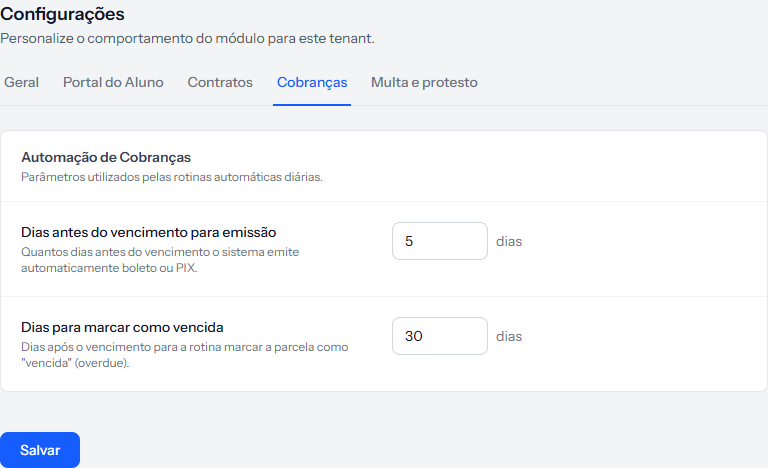 The five tabs sit just below the title. The open one is underlined in blue. The screenshot is from the Portuguese panel; the layout is the same in English.
The five tabs
| Tab | What it defines | When to touch it |
|---|---|---|
| General | Name, tax ID, logo, contact, address, timezone and currency | Day one, and whenever something changes |
| Student Portal | Portal address, how the student logs in, what the record requires | Day one, before enrolling anyone |
| Contracts | Institution signature and what happens when a contract expires | Before the first contract |
| Billing | How many days ahead to issue, and when to mark as overdue | Before the first charge |
| Penalty and protest | Termination penalty and sending debts to a notary | Only if the school will use it |
The order that saves rework
1. General first. The institution's name and tax ID go into every contract generated. Leaving it for later means redoing contracts.
2. Student Portal next. The login field and the mandatory record fields change the student form. Changing that after a hundred students are on file is painful.
3. Billing and Contracts before you start selling. These two are what daily operations lean on without noticing.
4. Penalty and protest last, and only if you will use it.
The badge inside Penalty and protest
This tab has something the others do not: in the protest block, a connection status badge for the notary service. It says one of three things — Connected, Not connected or Authorization expired — and it is clickable: it takes you straight to Integrations › Debt protest.
It is worth knowing what it does not mean. The two fields on this tab — the days overdue and the minimum amount — decide who enters the old-debt list, and they apply with or without a connection. The badge only tells you whether sending is available. A school can set the rules today and connect the notary next week without losing anything it configured.
There is a third filter, and it does not live here
The two fields above say when a debt starts qualifying. There is also a limit on the other end: notaries refuse debt that is too old, and that deadline is not configurable — it is set by the law of the state where the student lives.
In most of Brazil it is 12 months from the due date. In ten states the window is longer. Since the minimum is usually 90 days, that leaves roughly nine months to act in most cases.
That is why a student with a long overdue balance can show up on the list marked cannot be protested, with the reason written on the row. It is not a misconfiguration: it is that student's notary deadline. The sending article walks through each case.
Each tab saves on its own
There is one Save button per tab, and it stores only that tab. Filling in General and switching tabs without saving loses what you typed.
Who can change it
Only the school owner. Team members see every tab, with the values filled in, but have no Save button — it does not appear on the screen at all.
That is a coherent choice: Settings changes contracts, billing and student access in one go.
How you know it worked
The page reloads on the same tab, with a green banner confirming the settings were saved.
If something goes wrong
You saved and the value reverted. You probably saved the wrong tab: each button stores only its own fields.
The Save button is not there. You have the team role. Only the owner changes Settings.
Reviewed on · view as plain text