
What you will get
The first step of the wizard finished. There are four fields, and the system tries to guess three of them for you.
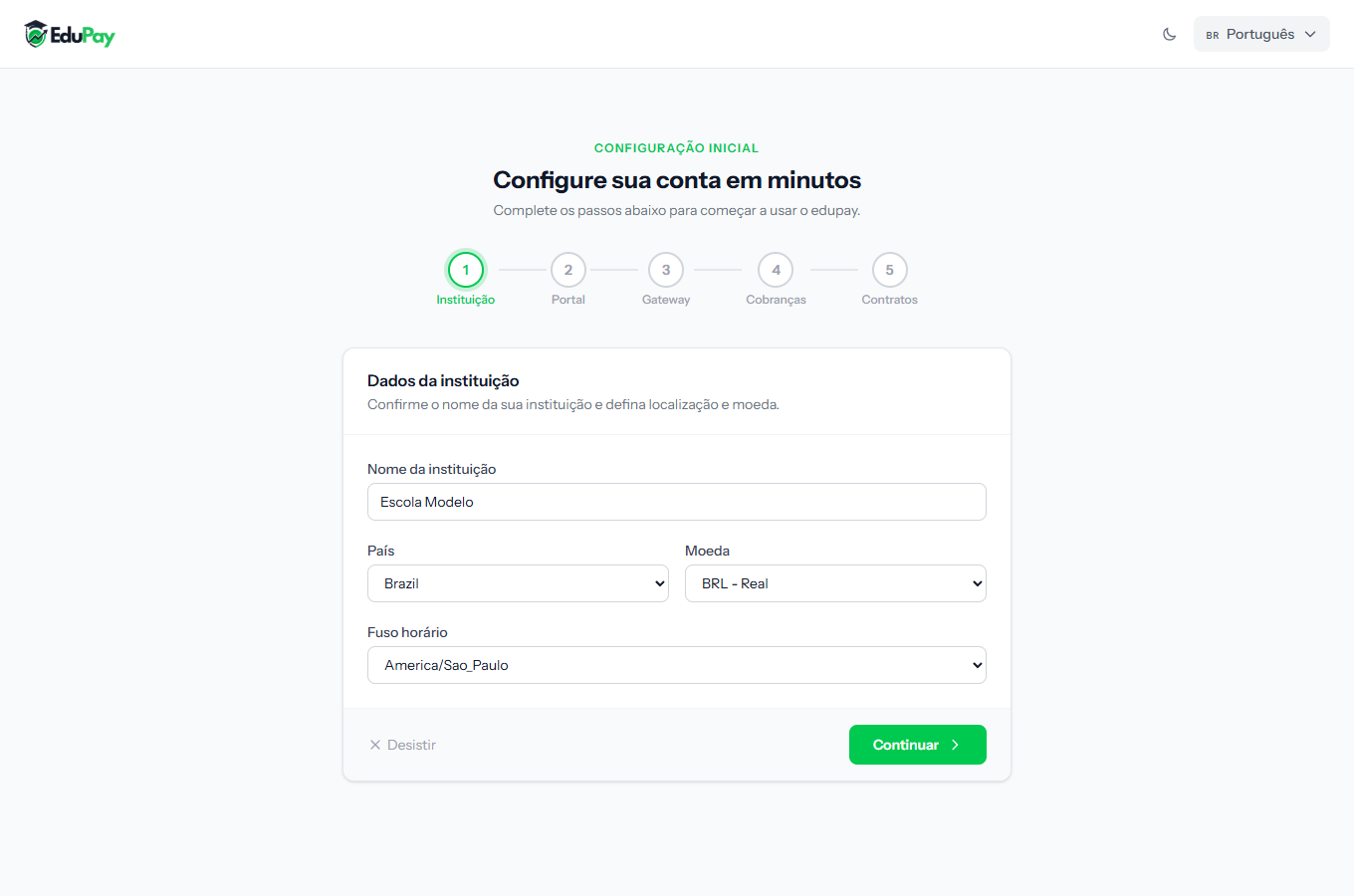 The fields come pre-suggested. Check them before continuing — the currency above all.
The four fields
Institution name — the name that will appear on contracts and in the emails students receive. Use the name the school is known by, not necessarily its legal name.
Country — sets the defaults for the rest. Changing the country re-suggests the currency and the timezone.
Currency — the most important field on this screen. It defines how every amount is written in the system and which currency charges are born in.
Timezone — defines what "today" means to the system. It decides when an installment falls due and at what hour the overnight routines run. The wrong timezone makes installments fall due a day early or late.
About the currency, before you click Continue
Check the currency carefully. Once charges have been issued, changing it converts nothing: old amounts keep the number they had and start being read in the new currency. An installment of 247 becomes 247 in the other currency, and the whole portfolio goes wrong.
If your school charges in more than one currency, that is a conversation to have before you start — talk to support.
Step by step
1. Check the institution name.
2. Choose the country. Currency and timezone adjust themselves.
3. Confirm the currency, and only change it if you really charge in another.
4. Confirm the timezone. It matters more than it looks.
5. Click Continue.
How to tell it worked
The ruler at the top marks the Institution step with a green mark, and the wizard moves on to Portal.
If something goes wrong
My school's country is not on the list. Talk to support before picking a similar one — the country sets the currency, the timezone and the available payment methods.
I picked the wrong currency and already finished. If no charge has been issued yet, it can be fixed under Settings. If one has, talk to support before touching anything.
The name came out wrong on the contract. That is this screen's field. Fix it under Settings — contracts generated from then on carry the new name.
Reviewed on · view as plain text