
What you will get
A cohort's student list, built. Open Students › Cohorts and click View on the cohort you want.
Step by step
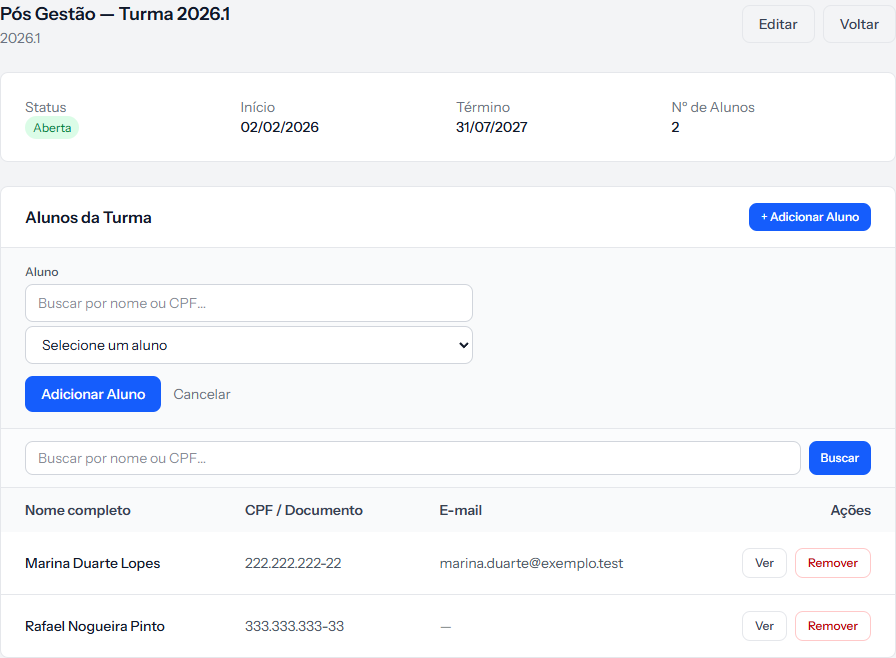 The panel with the Aluno field only appears after clicking + Adicionar Aluno. The second search box below searches inside the list already built.
1. Click + Add Student, to the right of Cohort Members.
2. Find the student. The top field filters by name or ID; the list below shows the result. Each student appears with their document in brackets, which settles the namesake problem.
3. Click Add Student. They join the list straight away.
Repeat for the others. For a whole class at once, the spreadsheet import is better — it has a cohort field and drops everyone in at the same time.
Who appears in the picker
Two filters, and both surprise people who do not know about them:
- Active students only. Anyone marked Inactive on their record does not appear.
- Only those not already in the cohort. Whoever joined disappears from the list, which prevents accidental duplicates.
Removing a student
The Remove button on their row asks for confirmation and takes them off the list.
Removing from the cohort touches nothing else. The student's record stays, their enrolments stay, their instalments stay. It is only the cohort's list.
The detail that prevents a lot of misunderstanding
This list is not the list of enrolments in that cohort. They are two separate things:
| What it is | What it counts | |
|---|---|---|
| Cohort Members | The list you build here | The No. of Students column |
| The enrolment's cohort | The cohort field inside each enrolment | Nothing on this screen |
Neither feeds the other. A cohort can show 0 students here and have thirty enrolments pointing at it — and the other way round happens too.
They serve different purposes. This list has two concrete uses: it is what carries the student into the class environment, and it is what feeds batch enrolment — the button that enrols a whole cohort at once. The enrolment's cohort is what goes into the contract.
How you know it worked
The green banner says Student added to cohort., and the number under No. of Students, in the panel above, goes up at the same moment.
If something goes wrong
The student is not in the picker. Either they are already in the cohort, or their record is set to Inactive.
You added the student but their enrolment did not change. That is expected: the two lists are independent. To change an enrolment's cohort, go through the enrolment.
The cohort is closed and you need to edit the list. You can add and remove in any status. What the status changes is whether the cohort shows up when enrolling.
Reviewed on · view as plain text