
What you will get done
Handling the three situations where a title already sent needs something from you: the notary returned it, the student paid, or the school changed its mind.
Each has a different route and a different cost. The screen only offers what fits the title's current status — if an option shows greyed out, it does not apply there.
When the notary returns a title
A red banner opens the title page with the reason. And right below it, the line that reassures anyone reading this for the first time: a return is not a protest — the student's name was not blacklisted and there was no cost.
What comes next depends on the reason, and the system decides that for you.
A reason that allows a fix
The Fix debtor details block appears, with the fields filled in as they stand on the student's record today. This covers postcodes that do not match the municipality, a name that differs, a wrong document.
1. Fix what the reason points at. 2. Click Fix and resend.
The correction applies to the student's record as well — that is where the wrong data came from, and fixing only the title would make no sense.
The title keeps the same number and goes back to the start of the route, at
AGUARDANDO_COLETA.
A reason that does not allow resending
You get the line "This return reason does not allow resending. Close the collection or escalate to legal." and a single button: Discard the title.
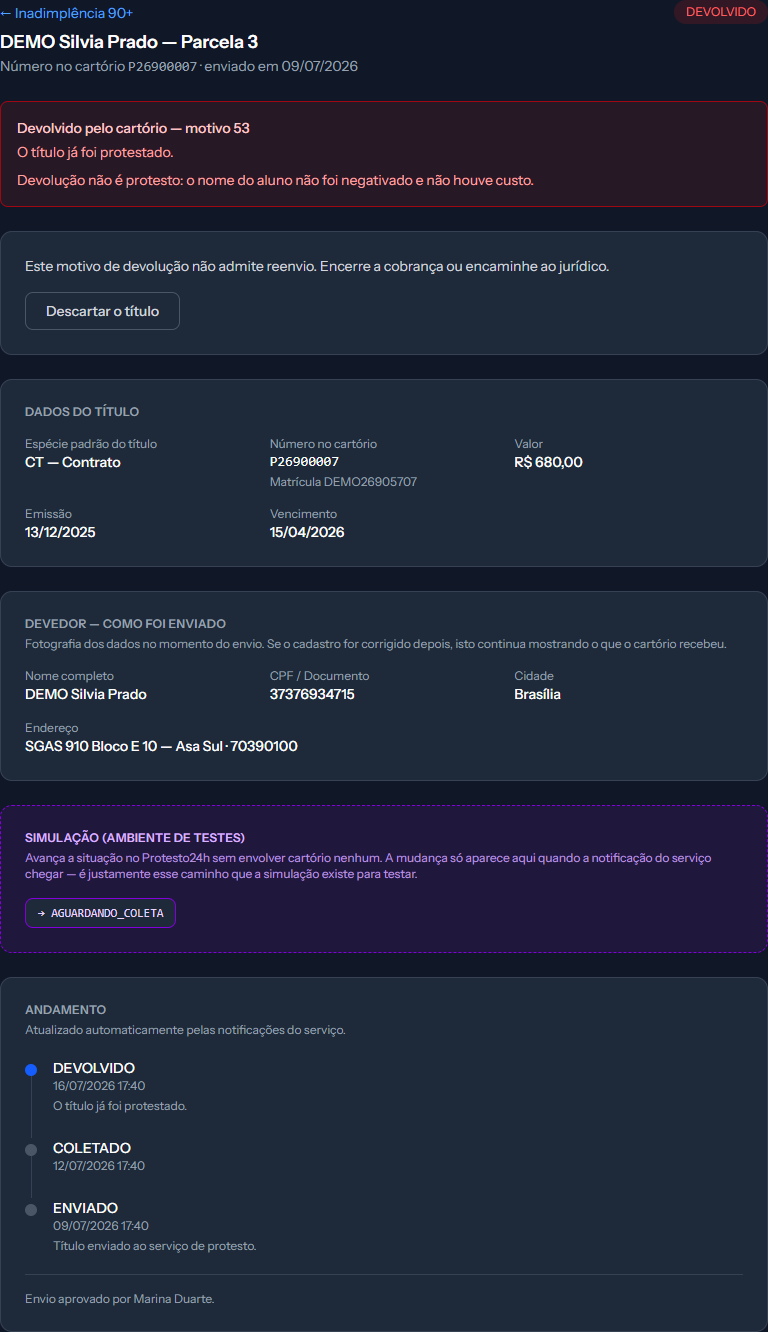
The banner carries the reason number and the notary's explanation. Its last line is the one that reassures the student: no blacklisting and no cost.
These are the cases where insisting will not help — title already protested, debtor deceased, bankruptcy, court order. The decision here is a human one, and it almost always goes through legal first.
Discarding does not delete anything. The title leaves the collection queue, but the page still opens and the whole timeline is still there. On the panel, the row now reads Closed.
Discarding is final: that instalment cannot be sent again. If the question is "do I close this or not?", it is worth deciding before clicking.
Cancelling a protest
Three routes, and what changes between them is who pays and how long it takes. The screen always shows all three, with the unavailable ones greyed out and explaining why.
| Route | When it applies | Who pays |
|---|---|---|
| Send cancellation | Only while the title has not left for the notary | Nobody |
| Cancellation authorisation | After it has been protested | The student, at the notary |
| Cancellation request | From collection onwards | The school |
Send cancellation is instant and free, but the window is short: it only
applies while the status is AGUARDANDO_COLETA. If you spot a mistake right
after sending, this is where it gets fixed for free — and it is worth checking
straight away, not the next day.
Cancellation authorisation is the route marked Recommended. The school authorises, the service takes the release letter to the notary within one business day, and the school pays nothing. In exchange, the protest only leaves the student's name once they go to the notary and pay the fees — so it depends on them.
Cancellation request is when the school takes on the fees. It is faster for clearing the student's name, and it is the usual choice when the student has already paid the school and the delay would be unfair to them.
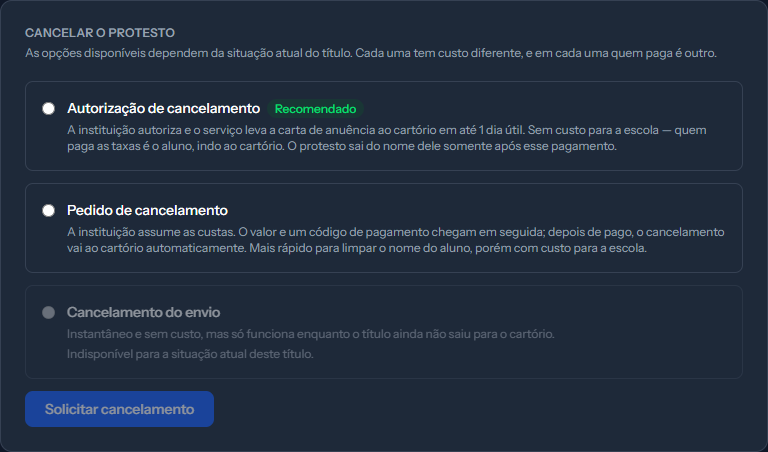
The greyed-out option carries, on its last line, the reason it does not apply to the current status. The green badge marks the recommended route, the one that costs the school nothing.
The routes do not stack. Once one is chosen the others disappear — the service refuses any second request on the same title.
How to request it
1. Open the title through the status button on the panel. 2. Choose one of the routes in the Cancel the protest block. 3. Click Request cancellation.
The fees, when the school pays
Once the cancellation request is chosen, the screen reads "Waiting for the fee amount." The amount is not set by EduPay or by the service: the notary calculates it, and it takes a few minutes.
When it arrives, the screen updates on its own and shows three things: Fee amount, Payment deadline and the Payment code to copy.
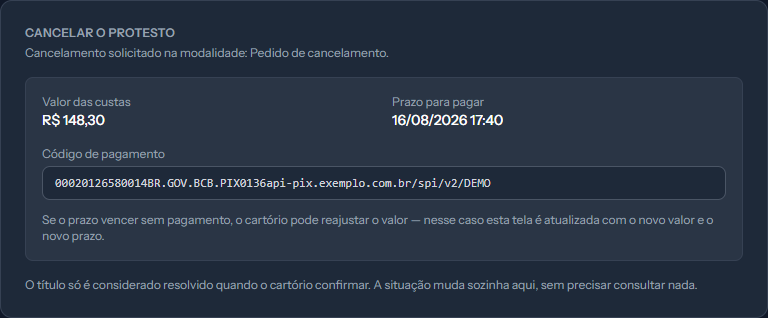
The payment code sits on a line of its own, ready to copy. Note the deadline next to the amount: it is what defines how long that amount stands.
Pay within the deadline. If it lapses, the notary may recalculate — and the screen is updated again, with the new amount and the new deadline.
When the student pays, cancelling can be automatic
Settings › Penalty and protest has an option to request the cancellation automatically as soon as a payment is confirmed.
With it on, the system picks the cheapest route available for the school: it prefers the authorisation, where the student pays the fees, and only falls back to the paid request when the authorisation does not apply to that status.
How to know it worked
The cancellation block now states which route the request was made under, and the other options disappear. A record with your name enters the timeline.
The matter is only closed once the notary confirms. Then the badge at the top turns to Closed and the screen reads "The registry confirmed the cancellation. Nothing else is required."
Until then the protest is still in force. Requesting is not cancelling.
If something goes wrong
Send cancellation is not available. The title already left for the notary. From then on only the other two routes apply, and both cost somebody money.
I requested the cancellation and the fee amount has not arrived. It comes from the notary and can take a few minutes. The screen updates on its own — no need to keep reloading.
I paid the fees and the title is still protested. The notary has to process the release. The status changes on its own once they confirm.
I want to drop a returned title that still allows resending. The screen only offers the fix in that case. If the school decided not to insist, the route is to leave it as it is — a returned title carries no cost and does not blacklist the student.
Reviewed on · view as plain text