
What you will get
The three middle choices made with confidence — they are the ones that decide the money.
Each answers a different question:
- Product — what is being sold.
- Financial plan — in how many parts and on which day.
- Payment method — how the student pays.
The product: offering or trail
Step 2 has two tabs. Oferta is the standalone course; Trilhas is the bundle of several.
Picking the product brings its base price into step 5. That amount is a suggestion: you can change it before saving.
The plan and the methods it unlocks
Once the plan is picked, the payment method field appears below it — and only with the methods that plan accepts.
If the student wants to pay by card and the plan only takes bank slips, the card will not appear. The answer is a different plan, not a different field.
The method also has to be one the school's receiving account can charge. If the chosen one is not enabled on the account — the Accepted payment methods box, under Integrations, shows this —, the enrolment is not saved.
With the method chosen, the system already shows how many instalments it means — Boleto, 12×.
On card, the number shown is the maximum number of instalments the student can pick at payment time. The enrolment creates a single charge for the full amount, and the split is handled by the card issuer.
The panel that checks everything
On the right, a summary builds itself as you choose.
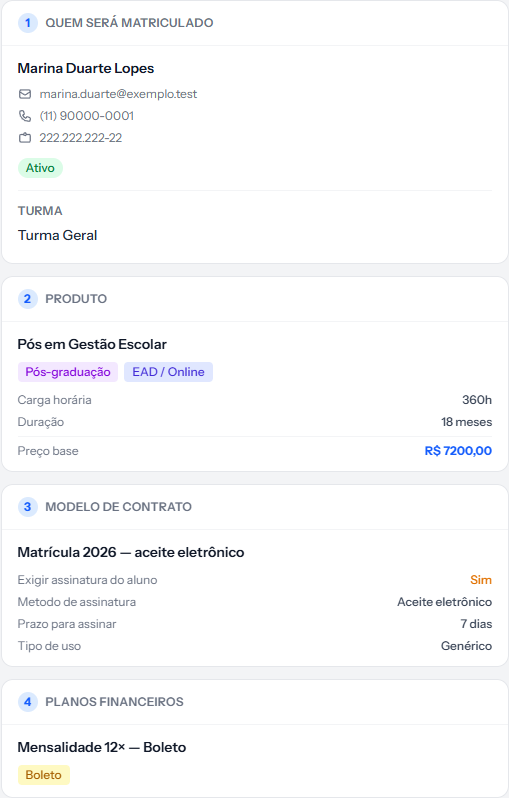 It is worth reading this whole panel before saving. It is the last chance to notice that the plan is last year's, or that the contract template demands a signature the school will not ask for.
For each choice it shows what matters:
| Block | What it checks |
|---|---|
| Who is being enrolled | Name, contact, ID and the cohort |
| Product | Type, modality, workload, duration and base price |
| Contract template | Whether it requires a signature, the method and the deadline |
| Financial plan | The plan's name and the methods it accepts |
When the amount is not the list price
The total value field in step 5 takes any number. It is where scholarships, agreed discounts and promotional prices go.
Type the final amount, with the reduction already applied. The financial plan's discount fields are not applied to charges, so the reduction has to be here.
The enrolment records that the amount was changed, and the instalment panel comes out with the new amount divided. The split is done in cents and, when it does not come out even, the difference goes on the last instalment: R$ 1,000.00 in 3 comes out as R$ 333.33 + R$ 333.33 + R$ 333.34. On card, there is a single instalment for the full amount.
How you know it worked
The right-hand panel shows all four choices filled in, and the amounts block in step 5 gives a total that matches what was agreed at the sale.
If something goes wrong
The product's base price came out wrong. It is only a suggestion — correct it in the total value field. If the registry is wrong, fix the offering too.
The trail brought an amount you do not recognise. A trail adds up the base price of all its offerings. If the school sells the bundle at a discount, type the agreed amount.
You picked the wrong plan and already saved. The plan cannot be changed afterwards. The way out is to cancel and redo the enrolment.
Reviewed on · view as plain text