
What you will get
A trail built: several offerings sold as one package, with a sequence and an added-up value. The path is Academic › Learning Trails and the New Trail button.
Before you build one: do you actually need it?
Trails are optional. They pay off when the sale is the whole set:
- A multi-module programme, bought in one go.
- A bundle of courses with a closed price.
- A study plan with a defined order.
If each student buys one course at a time, do not create a trail. An enrolment takes a standalone offering directly, and that is simpler to maintain.
Step by step
1. Create the trail. Four fields, and only the Name is required:
| Field | What for |
|---|---|
| Name | What the family sees on the contract and in the portal |
| Code | The school's own numbering, if any |
| Description | A paragraph about the package |
| Status | Active so it can be sold |
2. Link the offerings. After saving, the trail screen shows the Add offering to trail field at the bottom. Pick one and click Add, one at a time.
3. Check the summary.
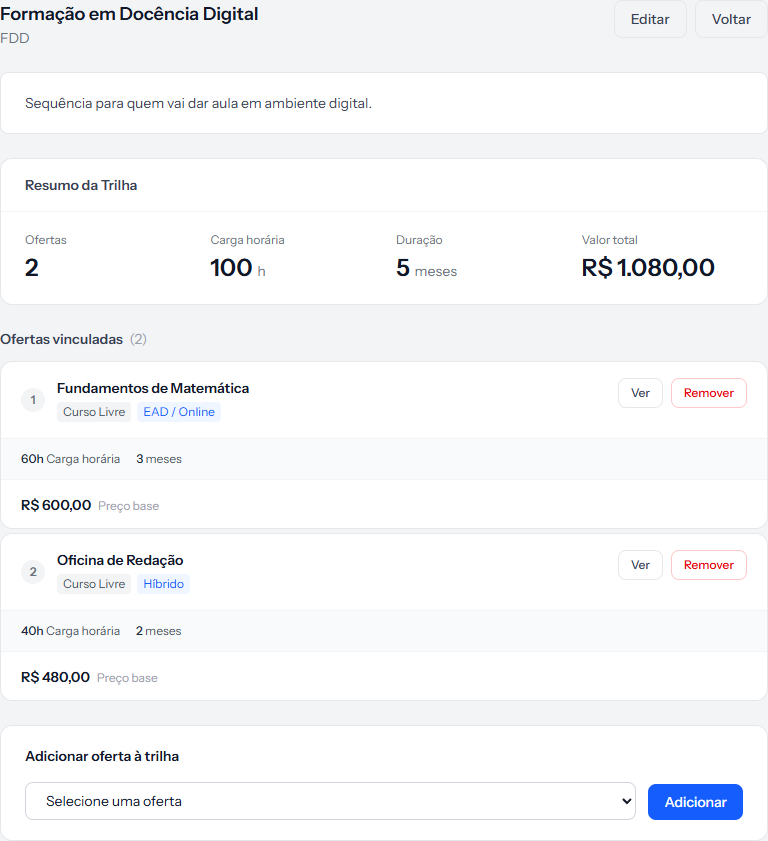 The panel at the top is added up from the offerings below: 60h + 40h make the 100 h, and R$ 600.00 + R$ 480.00 make the total.
What the summary adds up
Four numbers, all calculated from the linked offerings:
- Offerings — how many are in the trail.
- Workload — the sum of the hours.
- Duration — the sum of the months.
- Total value — the sum of the base prices.
When one of the offerings has no price, the panel warns: Partial value (some offerings without price). With none of them priced, it shows No pricing available.
That value charges nothing. It is a reference for you to check whether the sum matches what the school intends to charge. Charging comes from the financial plan picked on the enrolment.
The order of the offerings
The number beside each offering — 1, 2, 3 — is the order you linked them in. There is no dragging to reorder.
If the sequence matters, link them in the right order from the start. To fix it later, remove them and link again in the order you want.
How you know it worked
The green banner says Trail created successfully. and, for each linked offering, Offering linked successfully. The Trail Summary panel starts showing the totals, and the trail appears as a product when creating an enrolment.
If something goes wrong
The offering is not in the picker. Only Active offerings that are not already in the trail are offered. When they have all been linked, the message is All active offerings are already linked to this trail.
The total does not match what you charge. Expected, if the school discounts the bundle. The panel adds up base prices, with no discount at all.
The trail does not appear when creating an enrolment. Check that its status is Active.
Reviewed on · view as plain text