
What you will get
To come out of your first login with the school configured and knowing where everything is. It takes thirty minutes, and most of them go to the setup wizard — which the system opens for you.
The first minutes are guided
You do not have to decide where to start. The first time you log in, EduPay takes you straight to the setup wizard and will not let you navigate elsewhere until you finish it. That is deliberate: almost everything in the system depends on what is defined there.
There are five steps, and the wizard shows which one you are on.
After the wizard, learn the menu
Once the wizard is done you land on the panel. It is worth five minutes running your eye over the left-hand menu before doing anything — it is the map of the whole system.
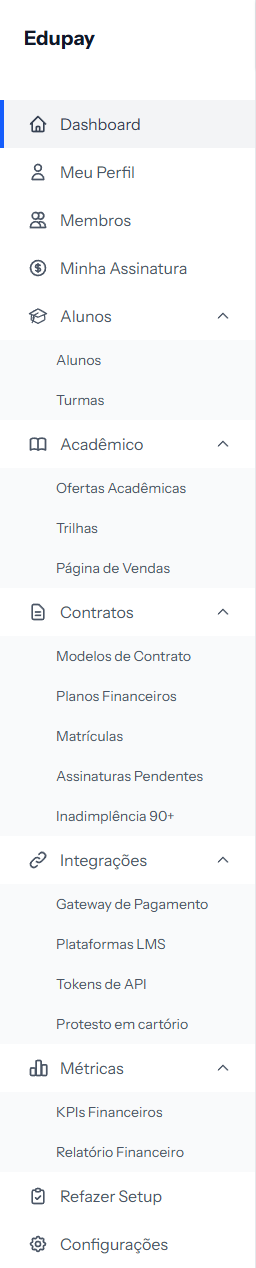 The first four items belong to your account. The groups that expand — Students, Academic, Contracts, Integrations, Metrics — are the day-to-day work.
Its logic follows the same line as the system: first who studies (Students), then what is studied (Academic), then what ties the two together with money (Contracts), then what connects to the outside world (Integrations), and finally what shows the result (Metrics).
What to do with the minutes left
With the wizard done, three things are missing before you can actually enroll someone. In this order:
- Create the first academic offering, under Academic › Academic Offerings. That is the course you sell.
- Build the price table, under Contracts › Financial Plans. Amount, how many installments, due day.
- Check the contract template, under Contracts › Contract Templates, if you created one in the wizard.
After that, Contracts › Enrollments works.
How to tell it worked
You can open Contracts › Enrollments, click to create one, and the screen offers a student, a course and a price table to choose from — with no empty lists. If all three have options, the school is ready.
If something goes wrong
The system will not let me leave the wizard. That is expected until it is finished. Go to the end; the last step can be skipped.
I logged in and saw no wizard. Either someone has already finished it, or you do not administer the account. Only the school owner goes through the wizard.
The course list is empty when I try to enroll. The wizard does not create courses — it configures the school. The academic offering is the next step, under Academic › Academic Offerings.
Reviewed on · view as plain text