
What you will get
An old template out of the way without losing track of the contracts that came from it.
The short answer, which covers nearly every case: deactivate, do not delete.
Deactivating
Open the template under Edit, change Status to Inactive and save.
- It leaves the picker when creating an enrolment.
- It stays on the templates list, with a grey tag.
- Contracts already generated change in no way.
It is reversible at any time.
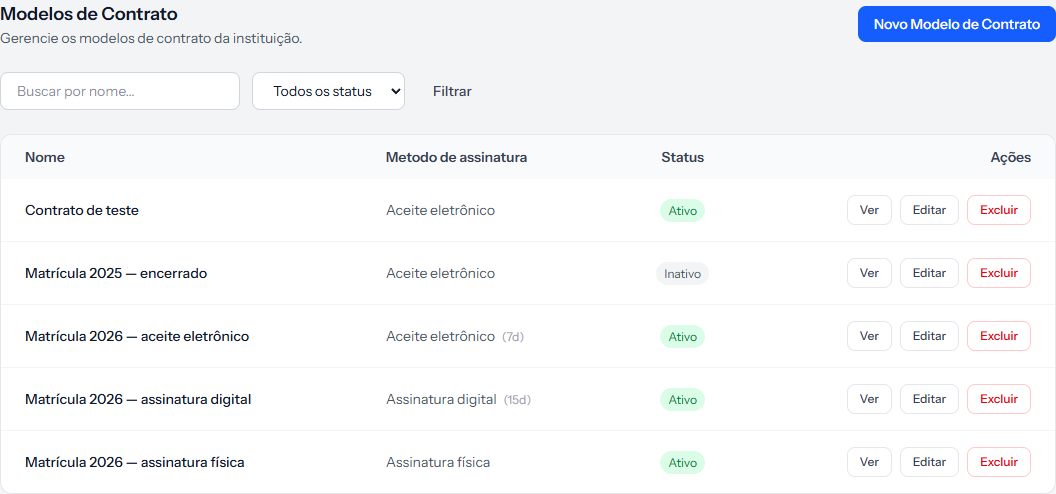 The 2025 template stays visible on the list, with the Inativo tag. It is simply no longer offered when enrolling.
Deleting
The Delete button takes the template off the list for good. The same caution as the system's other registries applies:
- It does not check whether enrolments use that template.
- There is no undo from the screen — the list has no deleted filter and there is no restore button.
Contracts already generated stay stored on their enrolments, because they are independent copies. What is lost is the source text, and with it the answer to "what did our contract look like that year?".
When deleting makes sense
In three cases, and only those:
- The template was created by mistake.
- It is a duplicate of the same text.
- It was a test, and no enrolment ever used it.
How you know it worked
After deactivating, create a test enrolment and look at the template picker: the deactivated one is gone. Open an old enrolment made with it: the contract is intact.
If something goes wrong
You deleted by accident. It cannot be restored from the screen. Create the template again with the same text — contracts already generated were not affected.
The deactivated template is still on the list. Expected: it leaves the picker, not the registry. Use the status filter to separate them.
You cannot see the Delete button. Contract templates belong to whoever administers the account.
Reviewed on · view as plain text