
What you will get
An empty physical-signature queue — and an understanding of why leaving it full costs money.
The path is Academic › Pending Signatures.
Why this queue matters
Every row here is an enrolment standing still. The student has done their part: printed, signed and sent it back. On the school's side, nobody has checked it yet.
Meanwhile the enrolment sits at Awaiting contract: the instalments exist, but the enrolment has not moved.
The counter in the menu
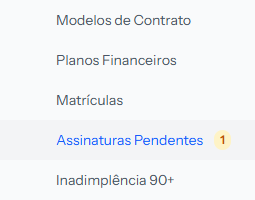 The amber pill shows how many contracts are waiting. With nothing waiting, it disappears. The screenshot is from the Portuguese panel; the layout is the same in English.
That number is your routine. It shows on every screen in the panel, and it is the only thing in the menu that announces stalled work on its own.
The queue
 The numbers in the FILES column are the files the student sent — clicking each one downloads it.
Six columns:
| Column | What it holds |
|---|---|
| STUDENT | Name and, below it, the ID number |
| ENROLLMENT NUMBER | The enrolment's number |
| PRODUCT | The course or service contracted |
| UPLOADED AT | Date and time of the submission |
| FILES | One numbered link per file |
| ACTIONS | Approve upload and sign and View |
The order runs from the most recent submission to the oldest. If the queue is long, the ones waiting longest end up at the bottom — worth scrolling down.
The routine that works
One pass a day, at the start of the shift. Five rows take a few minutes; fifteen accumulated rows take the whole afternoon.
For each row: open the files, check them, then approve or reject. The two articles alongside cover each path.
You can approve straight from the queue without opening a single file. The button is right there and the system requires nothing of you. Don't do it: approving is what turns a submission into a signed contract.
Rejecting is not here
The queue only offers Approve upload and sign. To reject, you have to click View and use the button inside the enrolment. Whether that asymmetry is deliberate or not, that is how it works today.
When the queue empties
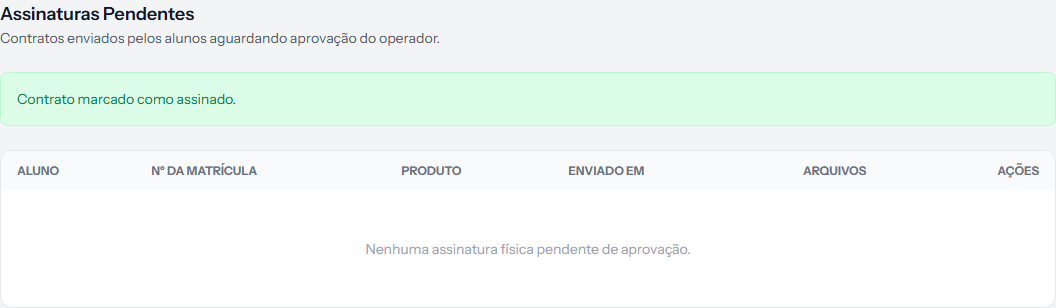 With nothing waiting, the screen reads No physical signatures pending approval. and the counter disappears from the menu.
How you know it worked
The counter disappears from the menu and the queue reads No physical signatures pending approval.
If something goes wrong
The queue is empty and the student says they uploaded. Either they never clicked Submit signed contract, or somebody else already approved it — check their enrolment directly.
A contract appears for a student who has already paid. That is possible: paying and signing are separate. The instalment can be paid while the contract still waits for approval.
Only physical signatures show up here. That is expected. Electronic acceptance and digital signature settle themselves and never enter this queue.
Reviewed on · view as plain text