
What you will get
Finding out, before building a price list, which payment methods your school can actually charge.
This is not a choice you make inside EduPay: it depends on what the receiving account has enabled.
Where to look
Integrations › Payment Gateway, the Accepted payment methods box.
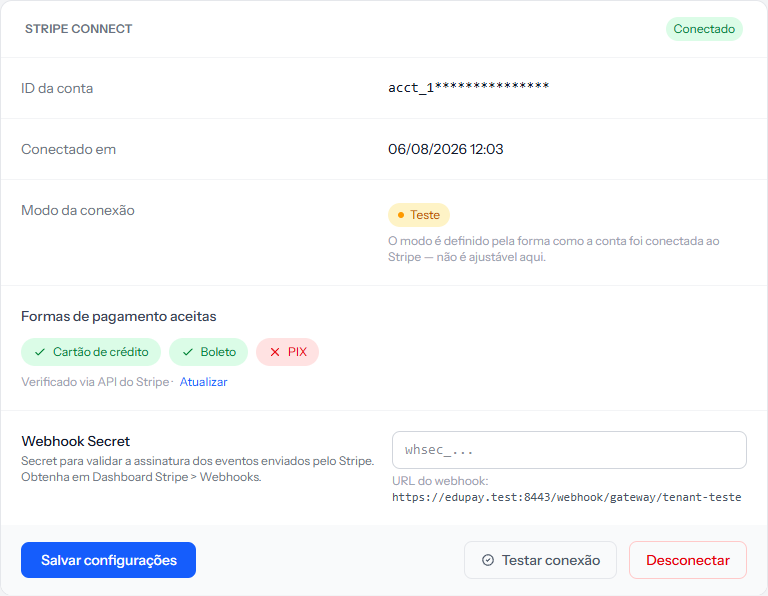 Each method becomes a chip. Green with a ✓ is enabled; red with a ✗ is unavailable. Here PIX is the missing one — the most common case for new Brazilian accounts.
Under the box there are two useful pieces of information: where the answer came from, and the Refresh link, which asks again and shows the situation at that moment.
The three marks
| Mark | What it means |
|---|---|
| Green with ✓ | Enabled. Charges of that method are issued normally |
| Red with ✗ | Unavailable on your account. The method is no longer offered, and nothing of it is issued |
| Grey with ? | It could not be checked right now. It does not mean blocked, and the method is still offered |
Hovering over a red chip, the screen explains: "This method requires activation on the Stripe account."
What changes when a method shows ✗
The method drops out of new enrolments. EduPay only enrols on methods the plan accepts and the receiving account can charge:
- in catalogue sales, the student does not even see it. If none of the plan's methods is left, the page shows "No payment method is available for this course right now. Please contact the institution to complete the enrollment.";
- when enrolling from the panel, the enrolment is not saved with it.
On installments that already exist in that method, nothing is issued — not by hand, not by the overnight routine. They sit at Awaiting issuance. The way out is switching the method from the installment's menu, under Change to, which only offers methods the account can charge.
That is why it is worth checking this box before creating a price list that offers that method: a plan that promises PIX, on an account without PIX enabled, sells without PIX.
Boleto and PIX depend on country and currency
Both are Brazilian methods. For them to be issued, two things must be true:
- the school's currency must be the real, under Settings;
- the receiving account must be Brazilian and have that method enabled.
A school set to another currency does not offer boleto or PIX on new enrolments, and installments that already exist in those methods are skipped by the routine, even if the box shows a ✓.
Credit card has no such restriction — it works in the currencies the account supports.
How to enable what is missing
Not here. Enabling is done inside the receiving account, in Stripe's own dashboard, in the payment methods area. Some are enabled immediately, others go through review, and PIX in Brazil is the case that most often requires a request.
Once enabled there, come back and click Refresh. The answer is kept for a while, so without that click the screen may keep showing the old situation for about half an hour.
If something goes wrong
I enabled it at Stripe and here it still shows ✗. Click Refresh. If it persists, the activation may still be under review on their side.
"Could not verify payment method status." appears. The check failed this time. Click Try again. If it persists, use Test connection to find out whether the whole connection is the problem.
Everything is green and an installment still was not issued. Then the payment method is not the problem. Follow the checklist for a charge that did not go out — the next suspect is the student's record.
Reviewed on · view as plain text