
What you will get
A spreadsheet that passes on the first try. Most import trouble is born in the file, not in the system — and all of it is easy to avoid before uploading.
The most liberating rule: your column names do not have to match anything. You say what each one is on the mapping screen. What matters is the content.
The minimum example
Three columns cover most schools:
name;id;email
Marina Duarte Lopes;222.222.222-22;marina.duarte@exemplo.test
Rafael Nogueira Pinto;333.333.333-33;rafael.pinto@exemplo.test
Sofia Almeida Cruz;444.444.444-44;sofia.almeida@exemplo.test
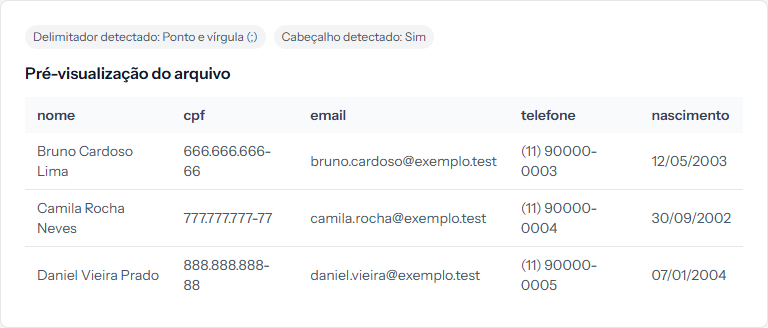 That is how the spreadsheet above turns up on the second import step. Use this screen as your final check: whatever looks wrong here goes in wrong.
Copy it into a text file, swap in your own students, and save as .csv. It
works.
The columns the system accepts
Fourteen fields, and you use only the ones you have:
| Record field | What to put in |
|---|---|
| Full name | Always required |
| ID / Document | With or without punctuation; either is fine |
| Required when your school's login is by email | |
| Phone | Free text |
| ZIP code | With or without the dash |
| Street, Number, Complement, Neighborhood | Free text |
| City | The name spelled out |
| State | Two letters — SP, MG, RJ |
| Country | Two letters — BR, PT, AR. Left blank, it becomes BR |
| Date of birth | See below |
| Status | See below |
Date of birth: three accepted formats
2004-07-22— year, month, day22/07/2004— day first07/22/2004— month first
Anything else is refused. Watch out for Excel, which likes to rewrite dates on its own when saving to CSV — open the finished file in a text editor and check before uploading.
Status: almost everything becomes Active
| What is in the spreadsheet | How it lands |
|---|---|
inactive, inativo or 0 |
Inactive |
| Anything else, including blank | Active |
There is no middle ground: write suspended or on hold and the student comes in as Active.
Three details that save rework
One row per student, no blank rows in the middle. Empty rows are skipped, but rows with a single stray cell confuse the reading.
No repeated ID inside the same file. Two rows with the same document stop the whole import. The same goes for the email, when the email is the login.
Accents: save as UTF-8. It is the default in modern editors. If accents come out mangled in the preview, that was the cause.
How you know it worked
On the second import step, the File preview shows your columns separated and readable, accents in place. If the sample looks right there, the file is good.
If something goes wrong
Accents appear as odd symbols. The file was saved in another encoding. In Excel, use Save as › CSV UTF-8.
Dates turned into numbers. Excel converted them to its own format. Format the column as text before typing, or fix it in the saved file.
The ID lost its leading zero. Excel treated it as a number and ate the zero. Same fix: format the column as text.
You have more columns than fields. No problem — the extras stay on Ignore field in the mapping and are discarded.
Reviewed on · view as plain text